
How to Fix Xiaomi Mi Band 6 Won’t Connect To Phone Issue
If you’re facing the frustrating issue of your Xiaomi Mi Band 6 not connecting to your phone, you’re not alone. It can be quite a hassle when your fitness tracker fails to sync with your device, but fear not! We’ve got you covered with expert tips and solutions to troubleshoot and resolve this connectivity problem. Whether it’s a pairing issue, Bluetooth connection problem, or synchronization error, we have step-by-step tutorials to help you get your Xiaomi Mi Band 6 up and running.
But first, let’s address the burning question:
Can you fix Xiaomi Mi Band 6 connection issues and finally sync it with your phone?
The answer is a resounding YES! Now, let’s dive into the details and learn how to troubleshoot and fix the Xiaomi Mi Band 6 connection problems.
- Restarting your Xiaomi Mi Band 6 can help resolve temporary glitches or software errors causing connection issues.
- Always check the battery level and charge your Xiaomi Mi Band 6 to ensure sufficient power for a successful sync.
- Resetting Bluetooth settings and re-pairing your Xiaomi Mi Band 6 with your phone can establish a fresh connection and fix software-related issues.
- Updating the Xiaomi Mi Band 6 firmware and mobile app is crucial to enhance compatibility and performance.
- If you’re still experiencing connectivity problems, further troubleshooting steps can help identify and resolve other underlying issues.
Restart the Xiaomi Mi Band 6
One of the first steps to take when facing connection issues with your Xiaomi Mi Band 6 is to restart the device. Restarting the band can help reset any temporary glitches or software errors that may be causing the connection problem.
To restart the Xiaomi Mi Band 6, follow these steps:
- Press and hold the power button on the Mi Band 6 for a few seconds.
- An options menu will appear on the screen. Select “Restart” from the menu.
- Wait for the band to turn off and then automatically restart.
After the restart, try connecting your Xiaomi Mi Band 6 to your phone again to see if the connection issue has been resolved.
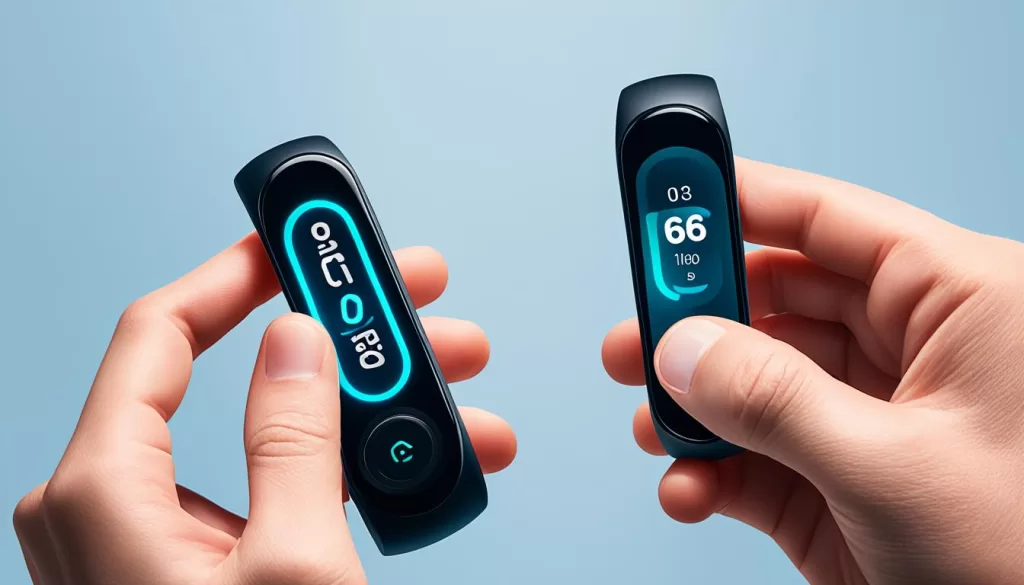
By restarting your Xiaomi Mi Band 6, you can power cycle the device and potentially fix any temporary software issues that may be causing the connection problem. If the restart doesn’t resolve the issue, continue troubleshooting with the next steps.
Check Battery Level and Charge Xiaomi Mi Band 6
A low battery level can often be the cause of connectivity issues with the Xiaomi Mi Band 6. Before troubleshooting further, it’s important to check the battery level and ensure it has enough power.
To check the battery level on your Xiaomi Mi Band 6, follow these steps:
Step 1: Open the Mi Fit App
Open the Mi Fit app on your smartphone.
Step 2: Connect to Your Mi Band 6
Ensure that your Xiaomi Mi Band 6 is connected to your smartphone via Bluetooth.
Step 3: Navigate to the Band Settings
In the Mi Fit app, navigate to the band settings by tapping on the profile icon at the bottom-right corner of the screen, then select your Mi Band 6 from the device list.
Step 4: Check Battery Level
In the band settings, you’ll find the battery level displayed. If the battery is low, it’s time to recharge your Xiaomi Mi Band 6.
To charge the Xiaomi Mi Band 6:
Step 1: Locate the Charging Port
Locate the charging port on the back of your Xiaomi Mi Band 6.
Step 2: Connect the Charging Cable
Connect the provided charging cable to the charging port.
Step 3: Connect the USB End to a Power Source
Connect the other end of the charging cable to a USB power source, such as a computer or wall adapter.
Step 4: Let it Charge
Leave your Xiaomi Mi Band 6 on the charger for a sufficient amount of time to reach a full charge.
Once the battery is fully charged, disconnect the charging cable and try reconnecting your Xiaomi Mi Band 6 to your phone.
If you continue to experience connectivity issues, proceed to the next section for further troubleshooting steps.
Reset Bluetooth and Re-Pair Xiaomi Mi Band 6
If restarting and charging the Xiaomi Mi Band 6 didn’t resolve the connection problem, the next step is to reset the Bluetooth settings on the band and re-pair it with your phone. This can help establish a fresh connection and fix any software-related issues.
Step 1: Reset Bluetooth Settings
To reset the Bluetooth settings on your Xiaomi Mi Band 6, follow these steps:
- Open the Mi Fit app on your phone.
- Navigate to the “Profile” tab.
- Select your Xiaomi Mi Band 6 from the devices list.
- Tap on “Unpair” or “Forget band” to remove the band from your phone’s Bluetooth settings.
Step 2: Re-Pair Xiaomi Mi Band 6
After resetting the Bluetooth settings, you’ll need to re-pair your Xiaomi Mi Band 6 with your phone. Follow these steps:
- Make sure your Xiaomi Mi Band 6 is nearby and within Bluetooth range of your phone.
- Open the Mi Fit app and go to the “Profile” tab.
- Select your Xiaomi Mi Band 6 from the devices list.
- Follow the on-screen instructions to pair your Xiaomi Mi Band 6 with your phone.
Once the pairing process is complete, your Xiaomi Mi Band 6 should be connected to your phone again.
Update Xiaomi Mi Band 6 Firmware and Mobile App
Outdated firmware or a mobile app can sometimes lead to compatibility issues and prevent the Xiaomi Mi Band 6 from connecting to your phone. It’s crucial to ensure that both the band’s firmware and the mobile app are up to date.
To update the firmware of your Xiaomi Mi Band 6, follow these steps:
Step 1: Check for Available Firmware Updates
Open the Xiaomi Mi Fit app on your smartphone and navigate to the settings menu. Look for the “Firmware Update” option and tap on it to check for any available updates for your Mi Band 6.
Step 2: Install Firmware Updates
If there is a firmware update available, tap on the “Install” button to start the update process. Make sure your Xiaomi Mi Band 6 is connected to your phone and keep it close to maintain a stable connection during the update.
Step 3: Let the Update Complete
Allow the firmware update to complete without interrupting the process. It may take a few minutes for the update to finish, so be patient and ensure that your Xiaomi Mi Band 6 stays connected to your phone throughout.
To update the mobile app of your Xiaomi Mi Band 6, follow these steps:
Step 1: Visit the App Store or Google Play Store
Open the respective app store on your smartphone and search for “Mi Fit” or “Xiaomi Mi Band 6.” Locate the Mi Fit app and tap on it to access the app details page.
Step 2: Check for Available App Updates
If there is an update available for the Mi Fit app, you will see an “Update” button. Tap on this button to start downloading and installing the latest version of the app.
Step 3: Allow the Update to Install
Once the update is downloaded, let the installation process complete. Make sure your phone has a stable internet connection during the update to ensure a successful installation.
Updating both the Xiaomi Mi Band 6 firmware and the mobile app can often resolve connectivity problems and improve the overall performance of the device. Keeping your Mi Band 6 up to date ensures that you have access to the latest features, bug fixes, and optimizations.
Troubleshoot Additional Connectivity Issues
If you’re still experiencing connection issues with your Xiaomi Mi Band 6, don’t worry. There might be other factors causing the problem. Common culprits include interference from nearby Bluetooth or Wi-Fi devices, app-related issues, or compatibility problems with certain mobile phones.
To troubleshoot these additional connectivity issues with your Xiaomi Mi Band 6, follow these steps:
- Make sure there are no other Bluetooth or Wi-Fi devices nearby that could be interfering with the connection. Move away from crowded areas or turn off other devices temporarily.
- Check if the Mi Fit or Xiaomi Wear app on your mobile phone is up to date. Updating the app to the latest version can sometimes resolve compatibility issues and improve connectivity.
- Restart your mobile phone and the Xiaomi Mi Band 6. Sometimes, a simple restart can refresh the connection and fix any temporary glitches.
- If none of the above steps work, try unpairing and re-pairing the Xiaomi Mi Band 6 with your phone. This can help establish a fresh connection and troubleshoot any underlying issues.
By following these troubleshooting steps, you should be able to resolve any remaining connection problems and ensure a seamless syncing experience with your Xiaomi Mi Band 6.