
How to Fix Ticwatch Pro 3 GPS Screen Unresponsive Issue
Have you ever experienced the frustration of dealing with a frozen or unresponsive screen on your Ticwatch Pro 3 GPS? It seems like a common issue that many users have encountered, leaving them wondering how to get their watch working again. But is there a way to fix it yourself, or do you have to rely on professional help? Let’s dive into the troubleshooting methods and find out!
Key Takeaways:
- Ticwatch Pro 3 GPS screens becoming unresponsive is a known issue reported by many users.
- There are steps you can take to try and fix the screen unresponsiveness yourself.
- Potential causes include loose flex cable connectors and water intrusion.
- You can attempt to clean and repair the screen yourself by opening the back of the watch.
- If all else fails, it may be necessary to seek professional help or contact Mobvoi’s customer support.
Causes of Ticwatch Pro 3 GPS Screen Unresponsiveness
There are several potential causes for the screen unresponsiveness on the Ticwatch Pro 3 GPS. One possible cause is a loose flex cable connector or water intrusion and corrosion on the board near the breather valve. These issues can be identified by opening the back of the watch and examining the internal components. It is worth noting that the water resistance of the watch may be compromised if it has been opened and repaired.
When the screen becomes unresponsive on your Ticwatch Pro 3 GPS, it can be frustrating and hinder your ability to use the watch effectively. Understanding the causes behind this issue can help you troubleshoot and find a solution. One of the potential causes is a loose flex cable connector or water intrusion and corrosion on the board near the breather valve. These problems can disrupt the connection between the screen and the internal components, resulting in unresponsiveness.
Opening the back of the watch and inspecting the internal components can help identify these issues. If you’re comfortable with doing so, you can examine the flex cable connector and the board near the breather valve for any signs of damage, loose connections, or corrosion. However, it’s important to keep in mind that opening the watch may compromise its water resistance.
Fixing the Ticwatch Pro 3 GPS screen unresponsiveness requires careful inspection and potential repairs to address the loose flex cable connector or water damage. If you’re not confident in your ability to perform these repairs, it’s best to seek the assistance of a professional to avoid further damage to the watch.
By understanding the potential causes behind the screen unresponsiveness of your Ticwatch Pro 3 GPS, you can take appropriate measures to troubleshoot and resolve the issue. Whether it’s inspecting the flex cable connector or addressing water intrusion and corrosion, identifying the root cause is the crucial first step towards restoring the functionality of your watch.
Cleaning and Repairing the Ticwatch Pro 3 GPS Screen
If you are experiencing issues with the screen of your Ticwatch Pro 3 GPS, you may be able to resolve them by cleaning and repairing the screen yourself. By following a few simple steps, you can potentially improve the screen responsiveness and restore the functionality of your watch.
To begin the cleaning and repair process, you will need to carefully open the back cover of your Ticwatch Pro 3 GPS. The back cover is likely glued on with a RTV-like material, so take your time to remove it without causing any damage. Once the back cover is removed, you will have access to the internal components of the watch.
Inspect the flex cable connector and the board near the breather valve for any signs of damage, loose connections, or corrosion. These issues can often lead to screen unresponsiveness. If you notice any problems in these areas, you can attempt to clean them to improve the functionality of the screen.
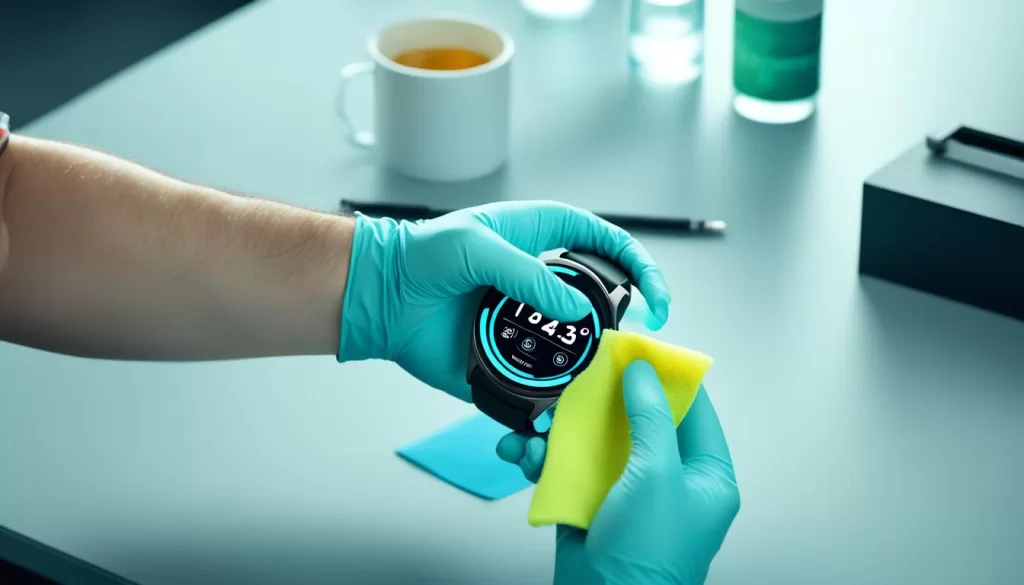
To clean the board, use a spudger and isopropyl alcohol. Gently remove any dirt or debris from the affected areas. Be careful not to apply too much pressure or use any sharp tools that could cause further damage. Additionally, consider using cotton swaps to reach smaller areas that may require attention.
After cleaning the board and ensuring there are no loose connections or signs of damage, carefully reassemble the watch. Make sure that all components are properly aligned and secured. Once the watch is reassembled, test the screen responsiveness to see if the cleaning and repair process has resolved the issues.
It is important to note that attempting to clean and repair the Ticwatch Pro 3 GPS screen yourself carries some risks. If you are uncomfortable with opening the back cover or are unsure about the process, it is recommended to seek professional help. Mobvoi’s customer support can provide further guidance and assistance if needed.
Preventing Ticwatch Pro 3 GPS Screen Unresponsiveness
To prevent screen unresponsiveness on your Ticwatch Pro 3 GPS, it is important to take certain precautions. By following these guidelines, you can minimize the risk of encountering screen issues and ensure the smooth operation of your watch.
Avoid Water Exposure
The Ticwatch Pro 3 GPS is designed with an IP68 rating, making it resistant to water splashes and suitable for pool swimming. However, it is advisable to avoid exposing the watch to high-speed water, such as during water sports or intense water activities. Additionally, refrain from submerging the watch in water for extended periods of time, as this can potentially lead to water damage and screen unresponsiveness.
Handle With Care
To maintain the optimal functioning of the screen, it is crucial to handle your Ticwatch Pro 3 GPS with care. Avoid dropping the watch or subjecting it to physical impact, as this can cause damage to the screen and result in unresponsiveness. Treat your watch as a valuable accessory and take precautions to ensure its longevity.
Resetting the Ticwatch Pro 3 GPS
If you have tried cleaning and repairing your Ticwatch Pro 3 GPS screen but it is still unresponsive, don’t worry, there is one more troubleshooting step you can try – resetting the watch. Resetting the watch can help resolve software glitches and restore it to its default settings.
To reset the Ticwatch Pro 3 GPS, follow these steps:
- On the watch, navigate to the settings menu.
- Scroll down and find the “Reset” or “Backup & Reset” section.
- Tap on the option to perform a factory reset.
- Follow the on-screen instructions to confirm the reset.
It’s important to note that performing a factory reset will erase all data on the watch, so make sure to back up any important information before proceeding. Once the reset is complete, the watch will be restored to its original settings, and hopefully, the screen responsiveness issue will be resolved.
If you need assistance or further troubleshooting steps, you can always reach out to Mobvoi’s customer support for guidance. They may be able to provide additional solutions or offer warranty support if the issue is covered.
Backing Up Data Before Resetting
Before you proceed with the factory reset, it’s crucial to back up any data you want to keep. This includes contacts, messages, app preferences, and fitness tracking data. To back up your data:
- Go to the settings menu on your Ticwatch Pro 3 GPS.
- Navigate to the “Backup & Reset” section.
- Enable the backup to Google option.
Enabling the backup to Google will ensure that your data is securely saved to your Google account. Additionally, regularly syncing your Ticwatch with your paired smartphone can help keep your data up to date and included in the backup.
Backing Up Data Before Resetting
Before resetting your Ticwatch Pro 3 GPS, it is crucial to back up any data you want to keep. This includes contacts, messages, app preferences, and fitness tracking data. To ensure a seamless backup process, follow these steps:
- Access the settings menu on your Ticwatch Pro 3 GPS.
- Navigate to the “Backup & Reset” section.
- Enable the backup to Google option.
- This will automatically back up your data to your Google account.
- Additionally, make it a habit to regularly sync your Ticwatch with your paired smartphone.
- By doing so, you can ensure that any new data is included in the backup.
Remember, backing up your data is essential before initiating a reset to avoid losing any valuable information.
When to Seek Professional Help
If you have tried cleaning, repairing, and resetting the Ticwatch Pro 3 GPS screen and it still remains unresponsive, it may be worth seeking professional help. Contact Mobvoi’s customer support for assistance and to inquire about repair options. They may be able to provide further troubleshooting steps or offer a warranty replacement if the issue is covered. Remember to provide them with all the necessary information about the problem and the steps you have already taken.