
How to Fix Ticwatch GTX Steps Count Not Accurate Issue
Have you ever wondered why your Ticwatch GTX doesn’t accurately count your steps? It can be frustrating when you’re trying to keep track of your daily activity, only to find that the step count is off. But fear not! We have some solutions that can help you fix this issue and ensure that your Ticwatch GTX accurately records your steps.
In this article, we will guide you through troubleshooting steps to address the accuracy issue with the steps count on your Ticwatch GTX. From checking the hardware and software to calibrating the steps count and considering external factors, we will cover all the bases to help you resolve this problem. So let’s get started!
Key Takeaways:
- Many users have reported inaccurate steps count on their Ticwatch GTX.
- Checking the hardware and software is the first step in troubleshooting the issue.
- Calibrating the steps count and ensuring proper wrist placement can improve accuracy.
- Syncing and firmware issues may also affect the steps count accuracy.
- External factors like terrain and arm movement can impact the accuracy of the steps count.
- If all else fails, seeking professional help from Ticwatch customer support is recommended.
Understanding the Ticwatch GTX Specifications and Features
The Ticwatch GTX is an entry-level activity tracker and smartwatch that offers a range of specifications and features. Understanding these specifications and features is crucial when troubleshooting the steps count accuracy issue.
The Ticwatch GTX features a 1.28-inch LCD color touch display, providing you with a vibrant and interactive user interface. With Bluetooth 5.0 LE connectivity, you can easily pair your smartwatch with your smartphone for seamless communication.
For those concerned about their heart rate, the Ticwatch GTX is equipped with a built-in heart rate sensor, allowing for 24/7 heart rate monitoring. This feature is particularly useful during workouts or for gaining insights into your overall health and fitness.
In addition to its activity tracking capabilities, the Ticwatch GTX offers 14 workout modes. Whether you’re running, cycling, or engaging in other physical activities, this smartwatch can accurately track your progress and provide you with valuable data.
Staying connected is important, and the Ticwatch GTX has you covered. It supports notifications, allowing you to receive alerts and messages directly on your wrist. No need to constantly check your smartphone.
Lastly, the Ticwatch GTX boasts an impressive battery life of up to 10 days. This means you can confidently wear your smartwatch throughout the day without constantly worrying about recharging it.
In conclusion, the Ticwatch GTX offers a range of specifications and features that make it a versatile and reliable smartwatch. By understanding these specifications and features, you’ll be better equipped to troubleshoot any steps count accuracy issues you may encounter.
Checking the Ticwatch GTX Hardware and Software
Before diving into troubleshooting steps, it’s essential to check the Ticwatch GTX hardware and software. This will help ensure that any issues with the steps count accuracy are not due to any hardware or software-related problems.
Verifying Bluetooth Connectivity
First, make sure that your Ticwatch GTX is properly connected to your smartphone via Bluetooth. Open the Bluetooth settings on your phone and check if the Ticwatch GTX is listed as a connected device. If not, follow the pairing instructions provided by the manufacturer to establish a connection.
Updating the Ticwatch App
Next, ensure that you have the latest version of the Ticwatch app installed on your smartphone. Outdated versions of the app may cause compatibility issues and impact the accuracy of the steps count. Visit the respective app store for your device and check for any available updates for the Ticwatch app. If an update is available, install it and restart both your smartphone and the Ticwatch GTX.
Inspecting Physical Damage
Check the Ticwatch GTX for any physical damage that could affect its functionality. Look for scratches, cracks, or signs of water damage. Physical damage can interfere with the proper functioning of the sensors, including the step counter. If you notice any damage, contact the manufacturer or authorized service center for further assistance.
By ensuring that the Ticwatch GTX is properly connected to your smartphone and the Ticwatch app is up to date, as well as inspecting for any physical damage, you can eliminate potential hardware and software issues that may impact the accuracy of the steps count.
Calibrating the Ticwatch GTX Steps Count
One possible solution to the inaccurate steps count issue with your Ticwatch GTX is to calibrate it. By calibrating the watch, you can improve the accuracy of the steps count going forward.
To calibrate the Ticwatch GTX, follow these steps:
Step 1: Wear the Watch During a Known Distance Walk or Run
Start by wearing your Ticwatch GTX during a walk or run of a known distance. For example, you can walk or run for 1 mile or 2 kilometers.
Step 2: Compare Recorded Steps with Actual Count
After completing the walk or run, compare the recorded steps on your Ticwatch GTX with the actual number of steps you took. Take note of any significant discrepancy between the two counts.
Step 3: Manually Adjust the Step Count in the Ticwatch App
If there is a noticeable difference between the recorded steps and the actual count, you can manually adjust the step count in the Ticwatch app to align with the accurate count. This calibration will help improve the accuracy of the steps count in the future.
By following these calibration steps, you can ensure that the steps count on your Ticwatch GTX is more accurate and reliable, providing you with a better tracking experience.
Ensuring Proper Wrist Placement and Fit
The placement and fit of the Ticwatch GTX on your wrist can significantly impact the accuracy of the steps count. To ensure precise tracking, follow these guidelines:
1. Snug but not tight: Secure the watch on your wrist by ensuring it fits snugly, but not too tight. This will prevent excessive movement that could interfere with accurate step tracking.
2. Top of the wrist: Place the Ticwatch GTX on the top of your wrist, closer to your hand, rather than lower down like a traditional watch. This positioning allows for better sensor contact and more accurate step detection.
3. Avoid looseness: Make sure the watch is not too loose on your wrist. If it’s too loose, it may move around unnecessarily, resulting in inaccurate step counts. Find the right balance to keep it secure without restricting blood flow.
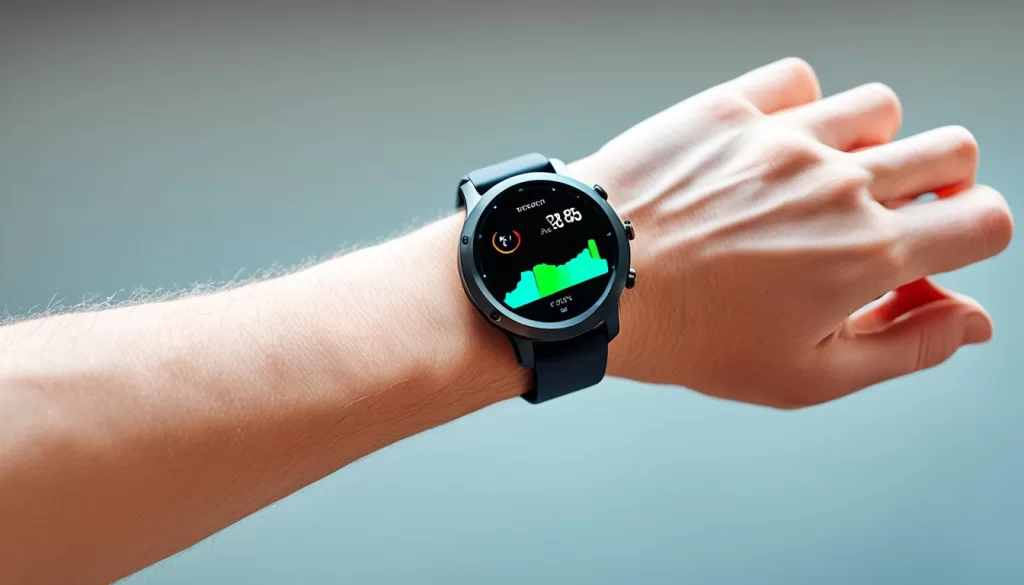
By following these wrist placement and fit recommendations, you’ll optimize the accuracy of your Ticwatch GTX steps count, ensuring more precise tracking of your daily activities.
Troubleshooting Syncing and Firmware Issues
If you are still experiencing issues with the steps count accuracy on your Ticwatch GTX, it’s possible that the problem lies with syncing or firmware. Fortunately, there are several steps you can take to troubleshoot and resolve these issues.
Firstly, try restarting both your Ticwatch GTX and your smartphone. This can help refresh the connection between the two devices and resolve any temporary syncing problems. After restarting, check if the steps count accuracy has improved.
If the issue persists, consider reinstalling the Ticwatch app on your smartphone. Sometimes, app installations can become corrupted or encounter conflicts, causing syncing problems. By uninstalling and reinstalling the app, you can eliminate any potential software issues that might be affecting the syncing process.
In addition to restarting and reinstalling, it’s crucial to keep your Ticwatch GTX firmware up to date. Manufacturers often release firmware updates to address bugs and improve device performance. Check for any available firmware updates by going to the settings menu on your watch or the Ticwatch app on your smartphone. If an update is available, install it and see if it resolves the steps count accuracy issue.
If you’ve tried all the troubleshooting steps mentioned above and the problem still persists, it’s time to reach out to Ticwatch customer support for further assistance. They have the expertise to diagnose and provide more advanced troubleshooting solutions tailored to your specific issue. They might also consider replacing your Ticwatch GTX if the problem is hardware-related.
Considering External Factors and Interference
When it comes to the accuracy of the steps count on your Ticwatch GTX, it’s important to understand that there are external factors that can come into play. These factors can affect the reliability of the step data recorded by the activity tracker.
One such factor is the terrain you’re walking or running on. Uneven surfaces can impact the sensor’s ability to accurately measure each step, resulting in inconsistencies in the steps count. So, if you notice discrepancies in the steps count, consider the type of surface you were on during your activities.
Another factor to consider is your arm movement during certain activities. Although the Ticwatch GTX is designed to detect steps through wrist movement, excessive arm movement or flailing can potentially interfere with the accuracy of the steps count. Keep in mind that the watch is primarily designed to track steps, and exaggerated arm movements may lead to inaccurate readings.
Additionally, environmental interference can also play a role. Magnetic fields, power lines, or other electronic devices in close proximity to your Ticwatch GTX can potentially disrupt its sensors, affecting the accuracy of step data. Be mindful of the environment you’re in when analyzing the reliability of your steps count.

Remember, external factors and interference can impact the accuracy of the steps count on any activity tracker, including the Ticwatch GTX. By acknowledging and considering these factors, you can better evaluate and address any inconsistencies in your step data.
Seeking Professional Help
If you have followed all the troubleshooting steps mentioned earlier and are still experiencing issues with the steps count accuracy on your Ticwatch GTX, it’s time to seek professional help. Don’t worry, Ticwatch provides excellent customer support to assist you in resolving the problem.
To get further assistance and guidance on troubleshooting the issue, reach out to Ticwatch customer support. They have a team of knowledgeable technicians who can provide you with more advanced troubleshooting steps specific to your situation. They can help you identify any underlying problems and offer expert advice on how to fix them.
In some cases, if the issue cannot be resolved, Ticwatch customer support may offer a replacement for your Ticwatch GTX. They will ensure that you have a fully functional device that accurately counts your steps. Rest assured that they are committed to providing the best possible support and customer satisfaction.
So, if you’re still struggling with the steps count accuracy on your Ticwatch GTX, don’t hesitate to reach out to Ticwatch’s professional support team. They are equipped with the knowledge and expertise to assist you in troubleshooting and resolving the issue, ensuring that you can fully enjoy the features and benefits of your Ticwatch GTX.