
How to Fix Samsung Galaxy Watch Active 2 Won’t Turn On Issue
Is your Samsung Galaxy Watch Active 2 refusing to power up? Don’t panic! We have the solutions you need to get your watch back to full functionality. Whether you’re dealing with a drained battery, a broken charger, or other common issues, we’ll guide you through troubleshooting steps to resolve the problem. So, let’s dive in and bring your Samsung Galaxy Watch Active 2 back to life!
Key Takeaways:
- A damaged watch, drained battery, broken charger, or faulty power outlet can cause the Samsung Galaxy Watch Active 2 not to turn on.
- Troubleshooting steps include checking the Power button, cleaning the charging ports, using a different charger cable or adapter, and charging the watch through a USB port on your laptop.
- If the issue persists, you can restart the watch or perform a factory reset using the Galaxy Wearable app.
- Seek professional help from uBreakiFix or consider the Asurion Home+ protection plan if all else fails.
Checking the Power Button and Cleaning the Charging Ports
If your Samsung Galaxy Watch Active 2 won’t turn on, one possible cause might be a stuck Power button. To check if the Power button is stuck, inspect it for any dust or debris. If you notice any buildup, gently clean the Power button using a cotton swab dipped in rubbing alcohol.
Additionally, the charging ports on your watch may be dirty, which can prevent proper charging. To clean the charging ports, use a cotton swab and gently wipe away any dirt or grime. This can help ensure a secure connection between the charger and the watch, allowing for effective charging.
In some cases, a clean Power button and charging ports can resolve the issue of a non-responsive Samsung Galaxy Watch Active 2. If the problem persists, however, there may be other underlying causes that require further troubleshooting.

Charging the Watch and Checking the Charger
If your Samsung Galaxy Watch Active 2 is not charging, there are several troubleshooting steps you can take to resolve the issue.
Start by placing your watch on its charging dock, ensuring that you are using the correct dock for your watch’s model and an approved Samsung wall adapter. When you connect the charger, look for a red blinking light. If you see this, try removing and replacing the watch on the dock to ensure proper placement.
If the watch still doesn’t charge, it’s important to check the charger cable and adapter for any damage. Sometimes, a faulty cable or adapter can prevent proper charging. Inspect the cable for any frayed or broken wires, and examine the adapter for any signs of damage. If necessary, try using a different charger cable or adapter.
In addition, the charging ports on your Samsung Galaxy Watch Active 2 may become dirty over time, which can hinder the charging process. To clean the charging ports, use a cotton swab to gently remove any debris or dust that may be present.
If using a different cable and cleaning the charging ports doesn’t solve the problem, consider trying a different power outlet. Sometimes, a faulty power outlet can interfere with the charging process. Alternatively, you can try charging the watch through a USB port on your laptop.
Remember, it’s important to ensure that you are using genuine Samsung accessories and approved charging methods to prevent any potential damage to your device.
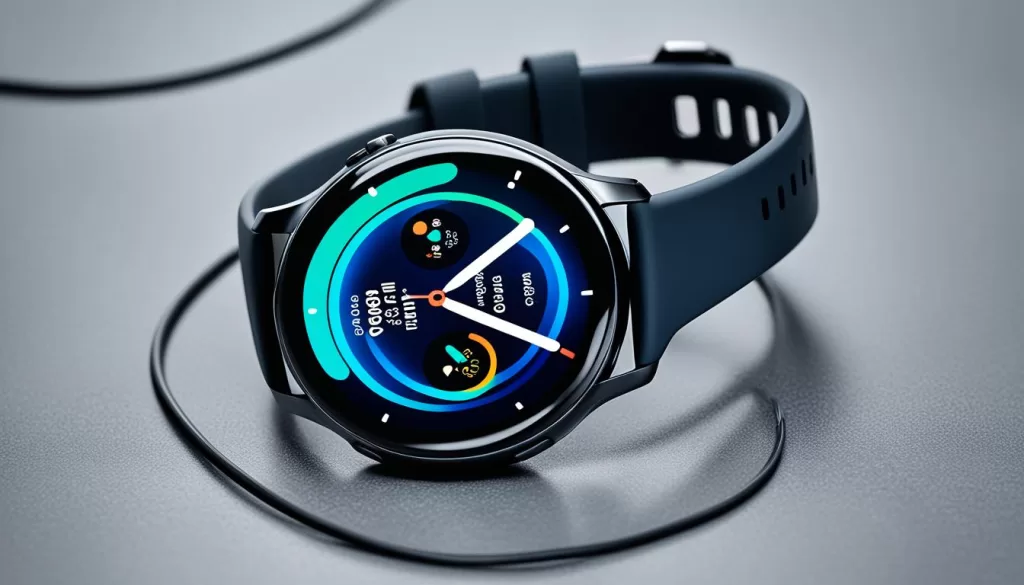
Following these steps should help resolve the issue of your Samsung Galaxy Watch Active 2 not charging. If the problem persists, you may need to seek further assistance from a professional technician or contact the manufacturer for support.
Restarting the Watch
If your Samsung Galaxy Watch Active 2 is not responding, you may need to restart it. Restarting the watch can help resolve various software-related issues and get it back to normal functioning. Here’s how you can restart your Samsung Galaxy Watch Active 2:
-
Press and hold the Power button located on the side of your watch.
-
Continue holding the Power button for about 10 seconds.
-
Release the Power button when the watch screen turns off and then turns back on.
If you’ve been using your watch for an extended period and it feels hot, it’s advisable to let it cool down for a few minutes before attempting the restart. Restarting your Samsung Galaxy Watch Active 2 can often resolve minor glitches or unresponsive behavior, allowing you to continue using your watch as usual.
In situations where restarting doesn’t resolve the issue, you can explore other troubleshooting options or consider seeking professional assistance.
Next Steps
If restarting the watch doesn’t solve the problem, move on to the next section to learn how to perform a factory reset on your Samsung Galaxy Watch Active 2 using the Galaxy Wearable app.
Factory Resetting the Watch
If none of the previous steps have resolved the issue, you may need to perform a factory reset on your Samsung Galaxy Watch Active 2. Before doing so, it’s important to back up your watch as a factory reset will erase all personal data. You can use the Galaxy Wearable app on your paired phone to initiate the factory reset. Open the app, tap on Watch Settings, then General, and choose Reset. Follow the on-screen instructions to complete the factory reset.
Seeking Professional Help
If you’ve tried all the troubleshooting steps and your Samsung Galaxy Watch Active 2 still won’t turn on, it may be time to seek professional help. Fortunately, there are reliable options available to get your watch back in working order.
One option is to schedule a repair at the nearest uBreakiFix store. As a trusted provider of electronic repairs, uBreakiFix has certified experts who can diagnose and fix the issue with your Samsung Galaxy Watch Active 2. Their technicians have the knowledge and experience to handle various problems, ensuring that your watch receives the necessary repairs.
Alternatively, you can consider the Asurion Home+ protection plan. This comprehensive plan offers coverage for your wearable tech, including smartwatches like the Samsung Galaxy Watch Active 2. With the Asurion Home+ protection plan, you can benefit from fast repairs by trusted experts for issues ranging from cracked screens to battery problems. It gives you peace of mind knowing that your valuable device is protected.