
How to Fix Samsung Galaxy Watch Active 2 Steps Count Not Accurate Issue
Do you rely on your Samsung Galaxy Watch Active 2 to track your steps? But what do you do when you notice that the step count is not accurate? It can be frustrating, right? In this article, we will delve into the common reasons behind inaccurate step counting on the Galaxy Watch Active 2 and provide you with step-by-step solutions to fix this issue.
Understanding Step Tracking on Samsung Galaxy Watch Active 2
The Samsung Galaxy Watch Active 2 utilizes advanced sensors, including an accelerometer and gyroscopic sensor, to accurately track your steps. These sensors work together to detect the unique patterns in your movement and interpret the collected data points to record each step you take. This sophisticated technology ensures precise step counting capabilities.
However, despite the advanced sensors and algorithms, there are several factors that can affect the accuracy of the step count. Sensor calibration plays a crucial role in ensuring accurate tracking. If your watch is not calibrated correctly, it may result in discrepancies in step counting accuracy. Additionally, wrist placement is another important aspect to consider. Wearing the watch too loosely or too tightly on your wrist can impact the accuracy of the step count.
It’s also important to note that hardware issues can also contribute to inaccurate step counting. If any of the sensors on your Samsung Galaxy Watch Active 2 are faulty or malfunctioning, it can affect the overall accuracy of step tracking.
Understanding these factors can help you troubleshoot and improve the accuracy of step tracking on your Samsung Galaxy Watch Active 2. In the following sections, we will explore various solutions and tips to fix inaccurate step counts and ensure a more precise tracking experience.
Resolving Inaccurate Step Count on Samsung Galaxy Watch Active 2
If your Samsung Galaxy Watch Active 2 is displaying an inaccurate step count, there are several solutions you can try to fix this issue.
- Ensure proper fit: Make sure that your watch is snugly fitted on your wrist. A loose fit can affect the accuracy of step tracking.
- Clear cache: Clearing the cache on your Galaxy Watch can help resolve any software-related issues that may be causing the inaccurate step count. To clear the cache, navigate to Settings > Apps > Samsung Health > Storage > Clear Cache.
- Recalibrate sensors: If step counting is still inaccurate, recalibrating the sensors can help improve accuracy. To recalibrate, open the Galaxy Wearable app on your connected smartphone, go to Settings > Motion > Calibrate, and follow the on-screen instructions.
- Fine-tune sensor sensitivity: Adjusting the sensitivity of the sensors can also enhance step count accuracy. You can find this option in the Galaxy Wearable app under Settings > Motion > Sensitivity.
- Restart or reset: If all else fails, try restarting your Galaxy Watch Active 2. If the problem persists, a factory reset may be necessary. Keep in mind that a factory reset will erase all data from your watch, so make sure to backup important information before proceeding.
By following these solutions, you can take steps towards resolving the inaccurate step count issue on your Samsung Galaxy Watch Active 2 and ensure more precise activity tracking.
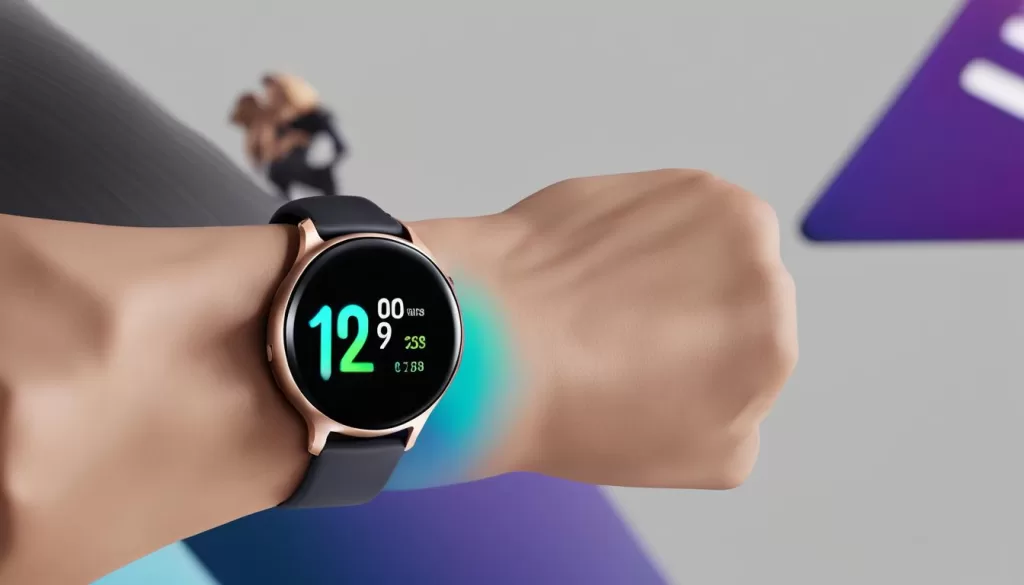
Ensuring Proper Wear and Use of Samsung Galaxy Watch Active 2
Proper wear and use of your Samsung Galaxy Watch Active 2 are crucial for accurate step counting. To ensure the best results, follow these guidelines:
- Wear the watch firmly against your wrist. A loose fit may result in inaccurate step counting due to excessive movement.
- Position the watch close to your wrist bone. This helps the sensors detect your movements more accurately.
- Adjust the watch settings to reflect your personal data accurately. Input your height, weight, and other relevant information in the health settings of your Galaxy Watch Active 2.
- Regularly calibrate your watch for step tracking accuracy. This process fine-tunes the sensors and improves the overall precision of your step count.
By following these guidelines, you can maximize the step count accuracy of your Samsung Galaxy Watch Active 2 and ensure that your activity tracking aligns with your fitness goals.

Note: Proper wear and calibration are key to accurate step tracking on your Samsung Galaxy Watch Active 2.
Optimizing App Updates and Compatibility for Step Count Accuracy
To ensure accurate step counting on your Samsung Galaxy Watch Active 2, it is essential to optimize app updates and compatibility. Keeping your apps up to date, especially the Samsung Health app and other related fitness apps, can significantly enhance step count accuracy. Outdated apps may not work seamlessly with your Galaxy Watch’s sensors or firmware, leading to inaccurate step tracking.
Regularly check for updates in the Galaxy Store or Google Play Store to ensure that you have the latest versions of these apps installed on your watch. These updates often include bug fixes, performance improvements, and enhanced compatibility with your device, ultimately improving step count accuracy.
Additionally, granting the necessary permissions for tracking your workout data is crucial. Check that you have given the required permissions for your Samsung Health app and other fitness apps to access the necessary data from your Galaxy Watch Active 2. This will enable the apps to utilize the sensors effectively and provide accurate step counting.
In some cases, step counting issues can be resolved by clearing the cache and data of the Samsung Health app. This step helps eliminate any temporary files or corrupted data that could be affecting the accuracy of the step count. To clear the cache and data, navigate to the App settings on your watch, locate the Samsung Health app, and select the appropriate options to clear cache and data.
To optimize app updates and compatibility for step count accuracy on your Samsung Galaxy Watch Active 2, follow these steps:
- Regularly check for updates in the Galaxy Store or Google Play Store to keep your apps, especially the Samsung Health app, up to date.
- Ensure that you have granted the necessary permissions for tracking your workout data.
- If you are experiencing step counting issues, consider clearing the cache and data of the Samsung Health app.
Syncing Steps with Samsung Health and Third-Party Apps
The Samsung Galaxy Watch Active 2 seamlessly integrates its step tracking features with the Samsung Health app, acting as the central hub for all your wellness data. It ensures that you have a comprehensive overview of your daily activity levels. To ensure accurate step syncing, it’s essential to follow a few simple steps.
First, make sure that your Samsung Galaxy Watch Active 2 has the latest software updates. This ensures that any bugs or issues related to step counting are addressed, providing you with reliable data.
Next, pay attention to wrist placement and calibration. Wear your watch snugly on your wrist, ensuring it is positioned correctly close to your wrist bone. This allows the sensors to detect your movements accurately, resulting in precise step tracking.
In addition to Samsung Health, you can also sync your steps with third-party apps like Google Fit. By installing the Health Connect app and granting the necessary permissions, you can seamlessly transfer your step data to these apps. This enables you to have a holistic overview of your fitness progress across different platforms.
Overall, syncing steps with Samsung Health and third-party apps enhances your experience with the Samsung Galaxy Watch Active 2. It provides you with a unified approach to tracking your steps, allowing you to monitor your progress and achieve your fitness goals more effectively.
Explore Your Fitness Journey
With step syncing capabilities, the Samsung Galaxy Watch Active 2 empowers you to take charge of your fitness journey. Whether you prefer using Samsung Health or third-party apps, the ability to seamlessly sync your steps brings convenience and precision to your tracking. Stay motivated, monitor your progress, and unlock your full potential with the Samsung Galaxy Watch Active 2.
Factors Affecting Step Count Accuracy on Samsung Galaxy Watch Active 2
When it comes to accurately tracking your steps with the Samsung Galaxy Watch Active 2, it’s important to understand the factors that can affect its accuracy. One such factor is walking on uneven terrain. The watch’s accelerometer relies on consistent movement patterns, and walking on uneven surfaces can disrupt this pattern, leading to inaccuracies in step counting.
Another factor to consider is making quick changes in your walking pace. Rapid speed adjustments can challenge the watch’s ability to accurately measure your steps, resulting in discrepancies in the step count. Additionally, if you’re using a treadmill for your workout, the repetitive motion can sometimes lead to miscounts.
Carrying something in the hand you’re wearing the watch on can also impact step count accuracy. The additional movement from carrying objects can interfere with the watch’s motion sensors, causing it to misinterpret your steps. To ensure more precise step counting, try to walk on even surfaces, maintain a consistent pace, and avoid carrying anything in the hand with the watch.