
How to Fix Samsung Galaxy Watch 4 Won’t Turn On Issue
Imagine this: you eagerly grab your Samsung Galaxy Watch 4 to check the time or track your fitness goals, only to find it completely unresponsive. Frustration sets in as you wonder what could possibly be the cause of this unexpected issue.
But fear not! In this article, we’ll guide you through the troubleshooting steps to bring your Samsung Galaxy Watch 4 back to life when it refuses to turn on. Whether it’s a drained battery, a faulty charger, or a need for a restart, we’ve got you covered.
Key Takeaways:
- There are several common reasons why your Samsung Galaxy Watch 4 may not turn on, including physical damage, a drained battery, or a need for a restart or factory reset.
- Troubleshooting steps such as charging your watch correctly, restarting it, or performing a factory reset can often resolve the issue.
- If all else fails, seek professional assistance by contacting Samsung customer support or visiting a Samsung Service Center for further investigation and repair.
Reasons Why Your Galaxy Watch 4 Won’t Turn On
If your Samsung Galaxy Watch 4 is not powering up, there are several possible reasons behind this issue. Understanding these reasons can help you troubleshoot and resolve the problem effectively.
One common reason is physical damage to the watch. Dropping or hitting the watch may cause internal components to malfunction, resulting in the screen not lighting up or the watch not responding.
Another potential cause is a drained battery. If your watch hasn’t been charged for a while or the battery has completely drained, it may not have enough power to turn on. This can happen if you haven’t been using your watch or if the battery has degraded over time.
A faulty charger or charging cable can also prevent your Galaxy Watch 4 from powering up. If the charger or cable is damaged, it may not provide a proper connection or supply sufficient power to charge the watch.
In some cases, the issue may lie with the power outlet you’re using to charge the watch. A faulty outlet or inconsistent power supply can prevent the watch from turning on.
Additionally, software issues or glitches can cause the watch to freeze or become unresponsive. In such cases, a restart or factory reset may be necessary to get it working again.
Identifying the specific reason why your Samsung Galaxy Watch 4 won’t turn on is crucial for finding a solution. In the following sections, we will explore troubleshooting steps for each potential cause, helping you get your watch up and running once again.
Troubleshooting Steps for a Drained Battery
If your Samsung Galaxy Watch 4 won’t turn on, it could be due to a drained battery. Here are some troubleshooting steps to help you fix this issue.
1. Place your watch on the charging dock
Start by placing your watch on its charging dock and ensuring that it’s properly aligned. This will ensure that the watch is receiving power from the charger.
2. Use the recommended charging accessories
Make sure you are using the recommended charging accessories for your Samsung Galaxy Watch 4. Using unauthorized or incompatible chargers may result in charging issues.
3. Charge your watch directly from a power outlet
Connect your charging dock to a power outlet and charge your watch directly. Avoid using USB ports on computers or other devices, as they may not provide sufficient power to charge the watch.
4. Remove the watch band
If your watch is charging slowly or not charging at all, try removing the watch band. Sometimes, the band can interfere with the charging process, preventing the watch from charging properly.
5. Try using a different charger or cable
If your charger cable or adapter is damaged, it may not be able to charge your watch effectively. Try using a different charger or cable to see if that resolves the issue.
6. Check the power outlet
Ensure that the power outlet you’re using is working properly. Try plugging in another device to see if it charges successfully. If the outlet is faulty, try using a different one.
By following these troubleshooting steps, you should be able to resolve the issue of your Samsung Galaxy Watch 4 not charging. If the problem persists, it’s recommended to seek professional assistance from a nearby Samsung Service Center or Samsung Support Center.
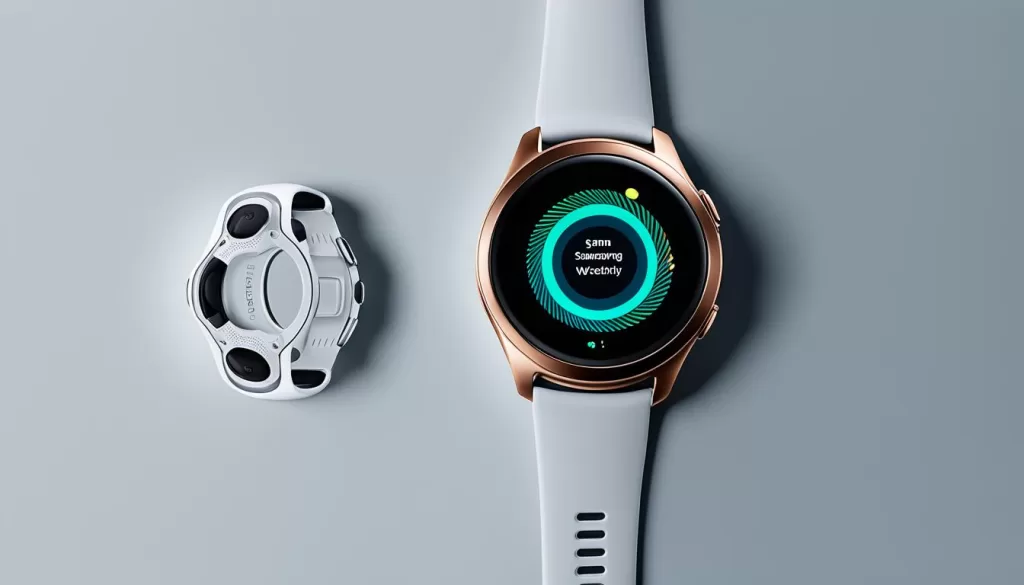
Steps to Restart Your Galaxy Watch 4
If your Samsung Galaxy Watch 4 is not turning on, a simple restart might help resolve the issue. First, check if the power button is stuck and clean it if necessary. Then, press and hold the power button for 10 seconds. This should force a restart and potentially fix the problem.
If your watch continues to have issues turning on, there may be other underlying causes that require further troubleshooting. In such cases, it is recommended to proceed with the next steps to diagnose and address the problem.
If the steps to restart your Samsung Galaxy Watch 4 did not resolve the issue and your watch still won’t boot up, there may be a more complex problem at hand. Continue reading the following sections to learn additional troubleshooting steps and find a solution to get your smartwatch functioning again.
Performing a Factory Reset on Your Galaxy Watch 4
If all else fails and your Samsung Galaxy Watch 4 still won’t turn on, a factory reset may be the solution. However, keep in mind that a factory reset will erase all personal data on your watch, so it’s important to back up your device before proceeding.
To perform a factory reset on your Galaxy Watch 4, follow these steps:
Step 1: Open the Galaxy Wearable App
Open the Galaxy Wearable app on your paired phone.
Step 2: Navigate to the Reset Settings
In the app’s main menu, navigate to the settings section and select “General.”
Scroll down and select “Reset.”
Step 3: Initiate the Factory Reset
Tap on “Factory data reset.” You may need to enter your PIN or pattern lock to proceed.

Performing a factory reset should only be done as a last resort after exhausting all other troubleshooting steps.
Remember to create a backup of your personal data to avoid losing important information.
By following these steps, you can attempt to resolve the Samsung Galaxy Watch 4 black screen issue.
Samsung’s Response and Support for the Issue
If you’re facing the frustrating problem of your Samsung Galaxy Watch 4 not turning on, rest assured that Samsung is aware of this issue. Following a recent software update, a limited number of Galaxy Watch 4 models have encountered difficulties in powering up. In response, Samsung has taken immediate action by halting the software update and is diligently working towards releasing new software to resolve the problem.
If your Galaxy Watch 4 has already been affected by this issue, Samsung recommends reaching out to their customer support for immediate assistance. They have trained professionals who can guide you through troubleshooting steps and provide further solutions. Some users have reported that their watches were replaced under warranty, so exploring this option could be beneficial if applicable to your specific situation.
It is crucial to stay informed about Samsung’s response to this issue as they continue to address and resolve it. Regularly check their official website and support channels for updates and announcements. By staying proactive and seeking timely support, you can ensure the smooth functionality of your Samsung Galaxy Watch 4.
Final Steps and Additional Resources
If you have followed all the troubleshooting steps and your Samsung Galaxy Watch 4 still won’t turn on, it’s advisable to seek professional assistance. Take your watch to a nearby Samsung Service Center or Samsung Support Center for further investigation and repair. Depending on the cause of the issue, Samsung may fix your watch free of charge if it’s under warranty.
Additionally, for comprehensive protection of your smartwatch and other tech devices, you may consider investing in an Asurion Home+ protection plan. This plan provides coverage against accidental damage, mechanical breakdowns, and loss or theft of your devices. With Asurion, you can have peace of mind knowing that your Samsung Galaxy Watch 4 and other devices are protected.
To learn more about Samsung Galaxy Watch 4 troubleshooting and other helpful resources, you can visit the Samsung Support website. They provide detailed guides, FAQs, and contact information for customer support. Stay informed about the latest updates from Samsung regarding the issue and take advantage of their support to get your smartwatch back up and running smoothly.