
How to Fix Samsung Galaxy Watch 4 Classic Steps Count Not Accurate Issue
Are you frustrated with the inaccurate step count on your Samsung Galaxy Watch 4 Classic? Do you find yourself questioning the reliability of your fitness tracking? Don’t worry, we’ve got you covered. In this article, we will guide you through the steps to fix the steps count accuracy issue on your Samsung Galaxy Watch 4 Classic.
Whether you’re an avid fitness enthusiast looking to track your progress or simply someone trying to stay active, having an accurate step count is essential. But what if your watch is not accurately counting your steps? What could be causing this issue? And most importantly, how can you fix it?
Join us as we explore different troubleshooting steps and solutions to ensure that your Samsung Galaxy Watch 4 Classic accurately tracks your steps, allowing you to achieve your fitness goals with confidence.
Key Takeaways:
- Loose fit on your wrist can lead to inaccurate step counts.
- Make sure to set up step counting on your watch.
- Keep your watch’s software up to date to avoid step tracking issues.
- Avoid false movements or immobile dominant wrists during activities.
- Restarting or resetting your watch can be a last resort solution.
Possible Causes of Inaccurate Steps Count on Samsung Galaxy Watch 4 Classic
If you’re noticing that your Samsung Galaxy Watch 4 Classic is not accurately counting your steps, there are several potential causes to consider.
A Loose Fit on Your Wrist: One possible cause of inaccurate step counts is a loose fit of the watch on your wrist. If the watch is not secured snugly, it may not be able to accurately track your movements.
Not Setting Up the Watch to Count Steps: Another common reason for inaccurate step counts is not properly setting up the watch to count your steps. It’s essential to ensure that step tracking is enabled in the settings of your Samsung Galaxy Watch 4 Classic.
False Movement Detection: The watch’s step counting may be affected by false movement detection. This can occur when the watch detects movements that are not actually steps, resulting in an inaccurate step count.
Outdated Software: If your Samsung Galaxy Watch 4 Classic has outdated software, it can lead to issues with step counting accuracy. Make sure to regularly check for software updates and install them to ensure optimal performance.
Other Factors: There can also be other factors contributing to inaccurate step counts, such as improper usage, improper positioning during activities, or software glitches. These factors are less common but should still be considered if the issue persists.
By understanding these possible causes, you can begin troubleshooting to identify and resolve the issue with the step count accuracy on your Samsung Galaxy Watch 4 Classic.
Adjusting the Fit of Your Samsung Galaxy Watch 4 Classic
One common reason for inaccurate step counts on the Samsung Galaxy Watch 4 Classic is a loose fit on your wrist. To fix this, adjust the band of your watch to ensure a snug fit. It shouldn’t be too tight or too loose, as either can affect the accuracy of the step count. By finding the right fit, you can improve the tracking accuracy of your watch.
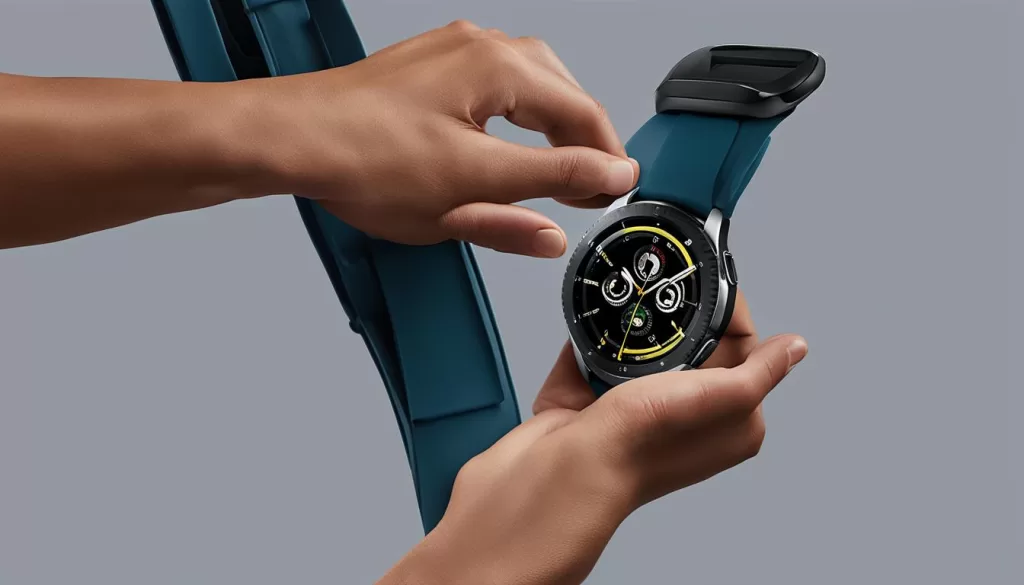
When wearing the Samsung Galaxy Watch 4 Classic, it’s essential to ensure that it fits comfortably on your wrist. A loose fit can lead to inconsistencies in step counting, affecting the overall accuracy of your fitness tracking.
To adjust the fit of your watch, follow these steps:
- Place the watch on your wrist with the display facing up.
- Hold the band on one side of the watch and lift the other side.
- Slide the band to the desired position.
- Make sure the watch feels secure but not overly tight.
- Test the fit by moving your wrist and checking if the watch stays in place.
If the band is too tight, it can restrict blood flow, causing discomfort and potentially affecting the accuracy of the step count. On the other hand, if the band is too loose, it may move around excessively, leading to false step counts.
It’s important to find the right balance and adjust the fit according to your comfort level. A snug fit that allows for natural movement without compromising blood circulation is ideal for accurate step tracking on your Samsung Galaxy Watch 4 Classic.
Setting Up Step Count on Your Samsung Galaxy Watch 4 Classic
If you haven’t set up the step count feature on your Samsung Galaxy Watch 4 Classic, you may experience inaccuracies in tracking your steps. To ensure that your watch accurately counts your every move, it’s essential to follow the setup process.
Start by accessing the settings on your watch. Navigate through the menu until you find the option for step tracking. Ensure that this feature is enabled, as it allows your watch to monitor your steps and provide accurate measurements.
To activate step counting, simply follow the on-screen instructions provided by your Samsung Galaxy Watch 4 Classic. These steps typically involve selecting your preferred units of measurement, such as miles or kilometers, and confirming other relevant settings.
Once the setup process is complete, your Samsung Galaxy Watch 4 Classic will be ready to track your steps with precision. Remember to wear your watch securely on your wrist to ensure optimal accuracy.
If you’re unsure whether you’ve successfully enabled the step count feature, you can always double-check the settings on your watch to confirm. By taking the time to set up step counting, you can rely on your Samsung Galaxy Watch 4 Classic to assist you in achieving your fitness goals.
Updating the Software on Your Samsung Galaxy Watch 4 Classic
One common cause of step counting issues on the Samsung Galaxy Watch 4 Classic is outdated software. When your watch’s software is not up to date, it may result in inaccurate step tracking. To ensure optimal performance and accurate step counts, it’s important to regularly update the software on your watch.
To update the software on your Samsung Galaxy Watch 4 Classic, follow these simple steps:
Step 1: Open the Galaxy Wearable App
Launch the Galaxy Wearable app on your paired smartphone. It’s essential to connect your watch to the smartphone to perform the software update.
Step 2: Access Software Update
Once the app is open, navigate to the “About Watch” or “About Device” section. Look for the “Software Update” option. Tap on it to proceed.
Step 3: Check for Updates
In the “Software Update” section, select “Download and install” or a similar option to check for available updates. Your watch will connect to the server to verify if any updates are available.
Step 4: Install the Update
If an update is available, tap on “Install” to start the installation process. Make sure your watch is connected to the charger and has sufficient battery life to avoid any interruptions during the update.
Once the update is installed, your Samsung Galaxy Watch 4 Classic will restart, and the software will be up to date. This update may fix any bugs or issues, including step tracking inaccuracies, ensuring you have a more reliable and accurate fitness companion.

Avoiding False Movements and Staying Active on Your Samsung Galaxy Watch 4 Classic
False movements or immobile dominant wrists can lead to inaccurate step counts on the Samsung Galaxy Watch 4 Classic. To ensure accurate tracking, it’s important to avoid false movements and stay active. Here are some tips to help you make the most out of your fitness tracking:
- Avoid Holding Onto Objects: When walking or working out, try not to hold onto objects with your dominant wrist. This can interfere with the step count accuracy. Keep both your hands and feet in motion to accurately track your steps.
- Maintain a Natural Arm Swing: When walking or running, make sure to maintain a natural arm swing. Move your arms freely and avoid holding them stiffly by your side. This will help ensure accurate step tracking on your Samsung Galaxy Watch 4 Classic.
- Engage in Full-Body Motion Activities: To maximize the accuracy of your step count, engage in activities that involve full-body motion. Activities like dancing, aerobics, or playing sports can help ensure accurate step tracking on your watch.
- Check Your Wrist Fit: Ensure that your Samsung Galaxy Watch 4 Classic fits comfortably on your wrist. It shouldn’t be too tight or too loose, as both can affect the accuracy of step counting. Adjust the band as necessary to achieve a snug yet comfortable fit.
- Stay Active Throughout the Day: Apart from dedicated workout sessions, try to stay active throughout the day. Take the stairs instead of the elevator, go for short walks during breaks, or incorporate physical activities into your daily routine. By staying active, you’ll make the most of your Samsung Galaxy Watch 4 Classic’s step tracking capabilities.
By following these tips, you can avoid false movements and stay active to ensure accurate step tracking on your Samsung Galaxy Watch 4 Classic. Stay motivated, keep moving, and achieve your fitness goals with confidence.
Restarting and Resetting Your Samsung Galaxy Watch 4 Classic
If you’ve tried everything else to fix the inaccurate step counting on your Samsung Galaxy Watch 4 Classic and are still facing issues, don’t worry. There are a few more steps you can take to troubleshoot and potentially resolve the problem.
The first option is to restart your watch. Simply press and hold the power button until the restart menu appears. Select the option to restart and give your watch a moment to reboot. This simple step can often resolve minor software glitches that may be affecting the step count accuracy.
If a restart doesn’t work, you can consider performing a factory reset. Keep in mind that this will erase all the data on your watch, so make sure to back up any important information beforehand. To perform a factory reset, go to the Settings menu on your watch, then scroll down to the System option. Select Reset, followed by Factory Reset, and confirm your decision. Your watch will reset to its original settings, and you can set it up as if it were brand new.
By restarting or resetting your Samsung Galaxy Watch 4 Classic, you give it a fresh start that can often fix lingering step counting issues. Be sure to follow the instructions provided by Samsung to ensure a smooth and successful reset process.