
How to Fix Samsung Galaxy Watch 4 Classic Not Charging Issue
Are you facing the frustrating issue of your Samsung Galaxy Watch 4 Classic not charging? Don’t worry, you’re not alone. Many users encounter this problem, but luckily there are several troubleshooting steps you can follow to resolve it.
The Galaxy Watch 4 Classic uses wireless charging, which can sometimes be ineffective or encounter issues. Before you rush to contact the Samsung service team, let’s explore some DIY solutions that could potentially save you time and money.
Key Takeaways:
- Validate your power source before assuming there is a problem with your watch.
- Check for debris or damage on the back of your smartwatch and its charging dock.
- Try alternative methods, such as reverse charging or wireless power share.
- Reboot your Galaxy Watch 4 to refresh its system.
- Resetting your device could be the solution if all else fails.
- Always check for software updates that may contain bug fixes
Validate Your Power Source
If you’re experiencing charging issues with your Samsung Galaxy Watch 4 Classic, the first step is to validate your power source. It’s important to ensure that the problem is not related to the outlet or the charger itself.
To begin, try plugging in a different appliance or device into the specific outlet you are using. This will help determine if the outlet is functioning correctly. If the other device charges without any issues, then the problem might be with your smartwatch.
Next, check the connection between your charger and the charging block. Make sure that the charger is firmly connected to the block and that the block is securely plugged into a wall outlet. Sometimes, a loose connection can prevent the watch from charging properly.
Remember to use a charging block that is suitable for your Galaxy Watch 4 Classic. Using an incompatible block can lead to charging problems. If you are unsure, refer to the manufacturer’s instructions or consult the official Samsung support website for compatible charging accessories.
By validating your power source and ensuring a secure connection, you can eliminate potential external factors that may be causing the charging issues with your Samsung Galaxy Watch 4 Classic.
Note: The image above serves as an illustration and is not indicative of the actual charging issue.
Check for Debris or Damage
If you’re experiencing a Samsung Galaxy Watch 4 Classic charging problem, it’s important to check for any debris or damage that may be hindering the charging process. Dust or dirt accumulation on the back of your smartwatch and its charging dock can interfere with the charging connection. To resolve this issue, follow these steps:
Step 1: Take a clean cloth and gently wipe the back of your Galaxy Watch 4 Classic. Ensure that you remove any dirt or debris that may have accumulated on the surface. This will help establish a clean and secure charging connection.
Step 2: Similarly, wipe the charging dock with the same cloth to remove any potential obstructions. Cleaning both the watch and the charging dock will eliminate any external factors that may be causing the charging problem.
Step 3: While cleaning, also inspect your Galaxy Watch charger and charging cable for any signs of damage. Check for frayed cables or bent pins on the charger. If you notice any visible damage, it’s essential to replace the damaged parts with new ones to ensure a proper charging connection.
Incorporating these steps will help you address the Samsung Galaxy Watch 4 Classic not charging issue caused by debris or damage. By maintaining a clean charging environment and replacing any damaged components, you can optimize the charging process and ensure the longevity of your device.
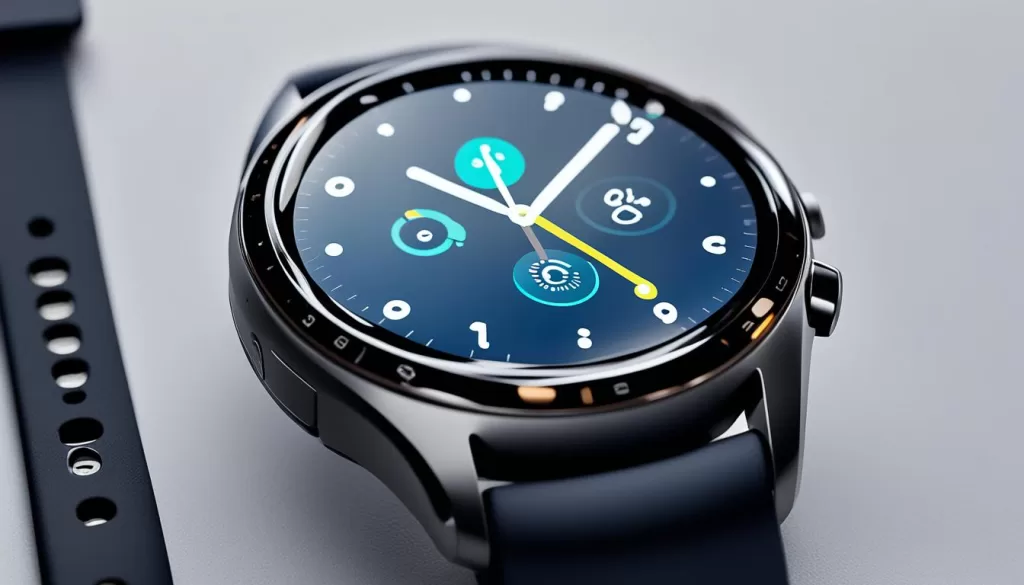
The image above showcases the charging port of the Samsung Galaxy Watch 4 Classic. It highlights the importance of keeping this area clean and free from debris.
Try an Alternate Method
If the traditional wireless charging method is not working for your Samsung Galaxy Watch 4 Classic, there are alternate solutions you can try. Some phones offer reverse charging or wireless power share functionality, which allows you to charge your watch using these methods.
To determine if your phone supports these features, check its specifications or consult the user manual. If your phone is compatible, you can attempt to charge your Galaxy Watch 4 Classic using the reverse charging or wireless power share function.
This method involves placing your watch on the back of your phone, aligning the charging coils, and ensuring a secure connection. Keep in mind that the charging speed may vary when using this method, and it may not be as efficient as the traditional wireless charging.
If you’re experiencing charging issues with your Galaxy Watch 4 Classic, trying this alternate method can provide a temporary solution while you troubleshoot the underlying problem.
Reboot Your Galaxy Watch 4
If your Samsung Galaxy Watch 4 Classic is still not charging, try rebooting the device. Sometimes, a simple reboot can resolve software glitches that may be causing the charging issue.
To reboot your Galaxy Watch 4 Classic, follow these steps:
- Press and hold both watch buttons simultaneously.
- Continue holding the buttons until the screen switches off.
- Release the buttons and wait for a few seconds.
- The watch will then reboot automatically.
After the reboot, check if your Galaxy Watch 4 Classic starts charging properly. If the issue persists, you may need to try other troubleshooting methods to resolve the problem.
Keep in mind that rebooting your device will not erase any data or settings. It is a safe and simple way to refresh the system and potentially fix charging issues.
Reset Your Galaxy Watch 4
If none of the previous solutions work, you can try resetting your Galaxy Watch 4 Classic. Open the Settings app on your device and navigate to General > Reset. Tap on Reset once more to confirm the reset. Keep in mind that this will erase all your data on the watch, so make sure to back up any important information before proceeding.
Resetting your Galaxy Watch 4 Classic can often help resolve persistent charging problems. By restoring the device to its default settings, you can eliminate any software issues that may be interfering with the charging process. However, remember to back up any important data or settings before performing a reset to avoid losing any valuable information.
Instructions to Reset Your Galaxy Watch 4 Classic:
If you have tried all the troubleshooting steps and your Galaxy Watch 4 Classic is still not charging, follow these instructions to reset the device:
- Open the Settings app on your Galaxy Watch 4 Classic.
- Navigate to General > Reset.
- Tap on Reset once more to confirm the reset.
After the reset, the device will restart and you can check if it starts charging properly. If the charging issue persists even after the reset, it is recommended to contact Samsung’s customer support or visit an authorized service center for further assistance.
The image above illustrates a Samsung Galaxy Watch 4 Classic and represents the topic of this section.
Check for Software Updates
One of the solutions to resolve charging issues with your Samsung Galaxy Watch 4 Classic is to ensure that your device’s software is up to date. Software updates often include bug fixes and performance improvements that can help improve the charging function of your smartwatch.
To check for software updates, open the Settings app on your Galaxy Watch 4 Classic. Look for the Software Update option and select it. If there is an available update, install it by following the on-screen instructions. It is recommended to connect your watch to a stable Wi-Fi network to ensure a smooth update process.
By keeping your Samsung Galaxy Watch 4 Classic up to date with the latest software, you can enhance its charging performance and potentially resolve any charging issues you may be experiencing.