
How to Fix Samsung Galaxy Watch 3 Steps Count Not Accurate Issue
Have you ever noticed that the steps count on your Samsung Galaxy Watch 3 doesn’t quite match your actual activity level? It can be frustrating, especially when you’re relying on your smartwatch to track your fitness progress. But don’t worry, there’s a solution!
In this article, we will guide you through the process of fixing the inaccurate steps count issue on your Samsung Galaxy Watch 3. Whether it’s due to sensor inaccuracies, incorrect placement, or software glitches, we’ve got you covered with troubleshooting steps that will help you get back on track.
Key Takeaways:
- Experiencing inaccurate steps count on your Samsung Galaxy Watch 3? There are troubleshooting steps you can take to fix the issue.
- Reasons for the inaccurate steps count can include sensor inaccuracies, incorrect placement, and software glitches.
- Clearing the cache in the Samsung Health app and changing the watch face can help resolve the issue.
- If the steps count is not showing in the Samsung Health app, there are troubleshooting steps you can follow.
- If all else fails, you can perform a test, reset your watch, or seek additional support.
Reasons for Inaccurate Steps Count on Samsung Galaxy Watch 3
If you find that the step count on your Samsung Galaxy Watch 3 is not accurate, there are several factors that could be causing this issue. Understanding these reasons will help you in troubleshooting and resolving the problem.
Sensor inaccuracies: The step tracking feature on your Samsung Galaxy Watch 3 relies on sensors to detect your movements. Sometimes, these sensors may not accurately capture every step you take, leading to a discrepancy in the step count displayed on your watch.
Incorrect placement on the wrist: The placement of your smartwatch on your wrist can also affect the accuracy of the step count. If the watch is not secured firmly or if it is placed on a part of your wrist that doesn’t allow proper movement detection, it may result in an inaccurate step count.
Software glitches: Like any electronic device, the Samsung Galaxy Watch 3 may experience software glitches that can impact step tracking accuracy. These glitches can cause the watch to miss or double-count steps, leading to an inaccurate step count display.
To address these issues and ensure an accurate step count, it is important to troubleshoot and identify the specific problem affecting your Samsung Galaxy Watch 3. In the following sections, we will provide you with detailed troubleshooting steps to help you fix the inaccurate steps count issue.
Troubleshooting Steps for Inaccurate Steps Count
To troubleshoot the inaccurate steps count issue on your Samsung Galaxy Watch 3, follow these steps:
- Check your watch placement: Ensure that you are wearing your watch properly on your wrist. Make sure it is snug and positioned correctly to accurately track your steps.
- Restart your watch: Sometimes, a simple restart can resolve minor software glitches affecting the step count accuracy. Press and hold the power button, then select “Restart” from the options menu.
- Update your watch software: Keeping your Samsung Galaxy Watch 3 up to date with the latest software version can fix known issues and improve step count accuracy. To update your watch, go to “Settings” on the watch, then scroll to “Software Update” and select “Download and install.”
- Reset step count data: If you believe that your watch’s step count data is incorrect, you can reset it. Go to the Samsung Health app on your phone, open the “Steps” tab, and tap on the three dots in the top-right corner. Choose “Manage steps data” and select “Delete all data.” Keep in mind that this will delete all previous step count data.
- Recalibrate step counting: If your step count remains inaccurate, recalibrating the step counting feature may help. Open the Samsung Health app on your phone, go to “Steps,” and tap on the three dots in the top-right corner. Choose “Steps settings” and select “Recalibrate.” Follow the on-screen instructions to complete the process.
- Contact Samsung support: If none of the troubleshooting steps mentioned above resolve the issue, it is recommended to reach out to Samsung support for further assistance. They can provide additional guidance specific to your Samsung Galaxy Watch 3.
Clearing Cache in Samsung Health App
If you’re experiencing inaccurate step counts on your Samsung Galaxy Watch 3, clearing the cache in the Samsung Health app can help resolve the issue. Clearing the cache can fix minor software glitches that may be affecting the accuracy of the step counter. Follow these steps to clear the cache:
Step 1: Open the Samsung Health app
On your smartphone, locate and open the Samsung Health app. The app icon should appear on your home screen or in the app drawer.
Step 2: Go to App Settings
Once inside the Samsung Health app, tap on the menu button or the three horizontal lines icon to access the app settings.
Step 3: Find the Storage or Cache Option
In the app settings menu, scroll down and look for the option that says “Storage” or “Cache.” Tap on it to proceed.
Step 4: Clear the Cache
Inside the storage or cache settings, you’ll find an option to clear the cache. Tap on it to clear the cache files associated with the Samsung Health app.
Step 5: Restart your Samsung Galaxy Watch 3
After clearing the app cache, restart your Samsung Galaxy Watch 3. This will ensure that any remaining cache data is removed from your smartwatch.
By following these steps, you can clear the cache in the Samsung Health app and potentially resolve the issue of inaccurate step counts on your Samsung Galaxy Watch 3. If the problem persists, consider trying other troubleshooting methods or seeking further assistance.
Changing Watch Face to Correct Steps Count Display
If your watch face is not showing the correct steps count or activity count, changing the watch face may help resolve the issue. Follow these steps to change your watch face:
Step 1: Access Watch Face Settings
To begin, navigate to the Watch Face Settings on your Samsung Galaxy Watch 3. This can usually be done by pressing and holding the current watch face or by accessing the settings menu on your watch.
Step 2: Browse Watch Face Options
Once in the Watch Face Settings, browse through the available watch face options. Look for a watch face that displays step count or activity count prominently. You can scroll through the options using the touch screen or the rotating bezel on your watch.
Step 3: Select a New Watch Face
When you find a watch face that you like and displays the step count accurately, tap on it to select it as your new watch face. Make sure to choose a watch face that is compatible with the Samsung Galaxy Watch 3.
Step 4: Confirm Watch Face Change
After selecting a new watch face, confirm the change by following the prompts on your watch. The step count displayed on your watch face should now accurately reflect your activity.
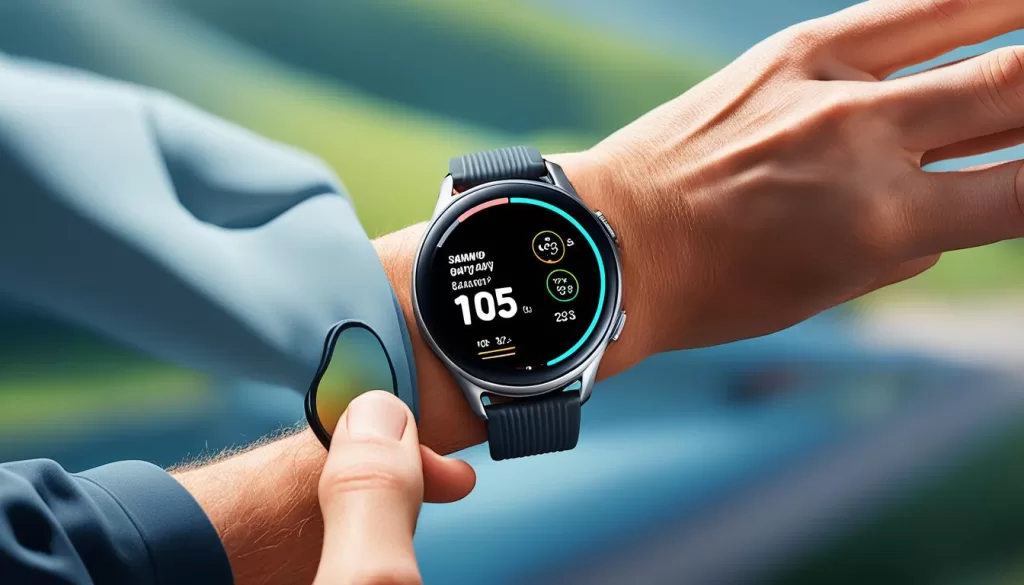
By changing the watch face on your Samsung Galaxy Watch 3, you can ensure that the steps count is accurately displayed, providing you with the information you need to track your daily activity. Try different watch faces until you find one that meets your preferences and accurately reflects your steps count.
Troubleshooting Steps for Steps Count Not Showing in Samsung Health App
If the steps count is not showing in the Samsung Health app on your phone, follow these troubleshooting steps:
Please note that these steps are specifically for resolving the issue of steps count not showing in the Samsung Health app on your Samsung Galaxy Watch 3.
Step 1: Ensure Proper Connection
Make sure that your Samsung Galaxy Watch 3 is properly connected to your phone. Check if the watch is paired with your phone via Bluetooth and that the Samsung Health app has access to the necessary permissions.
Step 2: Update Samsung Health App
Check if there are any available updates for the Samsung Health app on your phone. Outdated versions of the app can sometimes cause issues with step count syncing. Update the app to the latest version and check if the steps count starts showing.
Step 3: Restart Your Devices
Restart both your Samsung Galaxy Watch 3 and your phone. Sometimes, a simple restart can resolve connectivity issues and refresh the step count data.
Step 4: Reinstall Samsung Health App
If the steps count still does not show, try uninstalling and reinstalling the Samsung Health app on your phone. This can help clear any cache or temporary data that might be affecting the sync between the watch and the app.
Step 5: Contact Samsung Support
If none of the above steps resolve the issue, reach out to Samsung’s customer support for further assistance. They have the expertise to troubleshoot and provide solutions for any persistent issues.
By following these troubleshooting steps, you should be able to resolve the problem of steps count not showing in the Samsung Health app on your Samsung Galaxy Watch 3.
Test, Reset, and Support for Samsung Galaxy Watch 3
If the steps count issue on your Samsung Galaxy Watch 3 persists after troubleshooting, there are additional steps you can take to resolve the problem. Performing a test on your watch, resetting it, and seeking further support can help you identify and address any underlying issues.
1. Test Your Watch
If you suspect that there may be a hardware issue causing the inaccurate steps count, you can perform a quick test on your Samsung Galaxy Watch 3. Follow these steps:
Step 1: Go to the Settings menu on your watch.
Step 2: Scroll down and tap on “About watch”.
Step 3: Tap on “Test watch”.
Step 4: Follow the on-screen instructions to complete the test.
This test will help identify any hardware issues with your watch that may be affecting the steps count accuracy.
2. Reset Your Watch
If the test doesn’t reveal any hardware issues, resetting your Samsung Galaxy Watch 3 can sometimes resolve software glitches that may be causing the inaccurate steps count. Follow these steps to reset your watch:
Step 1: Go to the Settings menu on your watch.
Step 2: Scroll down and tap on “General”.
Step 3: Tap on “Reset”.
Step 4: Select “Factory reset” and confirm your choice.
Note: Resetting your watch will erase all data and settings, so make sure to back up any important information before proceeding.
3. Seek Further Support
If the steps count issue persists after testing and resetting your watch, it’s recommended to seek further support. Contact Samsung support or visit an authorized service center to get professional assistance in resolving the issue. They will be able to diagnose any underlying problems and provide the necessary solutions to ensure accurate step counting on your Samsung Galaxy Watch 3.
By following these steps, you can troubleshoot and resolve the steps count issue on your Samsung Galaxy Watch 3. If you’re still experiencing problems, reaching out to the support team will help you get the support you need for your smartwatch.

Ensuring Accurate Step Count on Samsung Galaxy Watch 3
To ensure an accurate step count on your Samsung Galaxy Watch 3, it is crucial to follow proper wear and use guidelines, adjust the watch settings, perform periodic calibration, and stay updated with the latest app updates.
First and foremost, make sure to wear your watch properly on your wrist. Position it about a finger’s width above the wrist bone to ensure accurate step tracking. Wearing it too loosely or too tightly may affect the sensor’s ability to detect your steps reliably.
Additionally, take a moment to review your watch settings. Access the Settings menu on your Samsung Galaxy Watch 3 and navigate to the Motion settings. Ensure that the step counting feature is enabled. You can also adjust the stride length to better reflect your walking or running style, which may enhance the accuracy of step counting.
Periodically calibrating your Samsung Galaxy Watch 3 can also help improve step count accuracy. Visit a known distance, such as a measured track or a known route, and manually count your steps while wearing the watch. Compare the manual count with the watch’s count and make adjustments if necessary. This calibrates the sensor to your specific stride and walking pattern.
Lastly, stay on top of app updates for your Samsung Galaxy Watch 3. Manufacturers often release updates that include bug fixes and performance improvements. By keeping your watch’s software up to date, you can ensure that any potential issues affecting the step count accuracy are addressed promptly.