
How to Fix Huawei Watch GT 3 Software Won’t Update Issue
Are you struggling to update the software on your Huawei Watch GT 3? It can be frustrating when your smartwatch refuses to update, leaving you wondering how to resolve the issue. But fear not, we have the solution for you!
In this article, we will guide you through the troubleshooting process to help you fix the update error and get your Huawei Watch GT 3 up to date. From disconnecting and updating over Wi-Fi to using the Huawei Health app, we’ll explore various methods to resolve the software update problem.
Ready to get your Huawei Watch GT 3 up to date? Let’s dive in!
Key Takeaways:
- Disconnect and update your Huawei Watch GT 3 over Wi-Fi to resolve software update issues.
- Update your Huawei Watch GT 3 through the Huawei Health app if you’re using a compatible device.
- Troubleshoot update transfer or detection problems by disabling Bluetooth and ensuring stable network connections.
- Address download and installation problems by connecting to a stable Wi-Fi network and restarting your watch if needed.
- Consider battery and network considerations to increase the likelihood of a successful software update.
Disconnect and Update Over Wi-Fi
If you’re experiencing issues with updating your Huawei Watch GT 3 software, one potential solution is to disconnect the watch from your phone and perform the update over Wi-Fi. This method can help resolve any connectivity problems that may be hindering the update process.
To get started, follow these steps:
- Turn off Bluetooth: On either your watch or phone, disable Bluetooth to ensure a complete disconnection between the two devices.
- Connect to Wi-Fi: Connect your Huawei Watch GT 3 to a stable Wi-Fi network. This will provide a reliable internet connection for the update process.
- Navigate to Settings: On your watch, go to Settings.
- Access System & updates: Within the Settings menu, find and select the “System & updates” option.
- Select Update: Look for the “Update” option and tap on it.
By following these steps, you can initiate the software update on your Huawei Watch GT 3. This method is recommended by Huawei and is often effective in resolving update issues related to connectivity. Once the update process is complete, your watch should be running the latest software version.
Update through Huawei Health App
Another convenient option for updating the software on your Huawei Watch GT 3 is by using the Huawei Health app. This method allows you to update your watch without the need to disconnect it from your phone. However, please note that this feature is only available on HUAWEI phones running EMUI 10 or later and third-party Android phones.
To update your watch through the Huawei Health app, follow these simple steps:
- Open the Huawei Health app on your compatible smartphone.
- Navigate to the device details screen within the app.
- Look for the “Firmware update” option and tap on it.
By following these steps, you will be able to start the update process for your Huawei Watch GT 3 directly from the Huawei Health app.
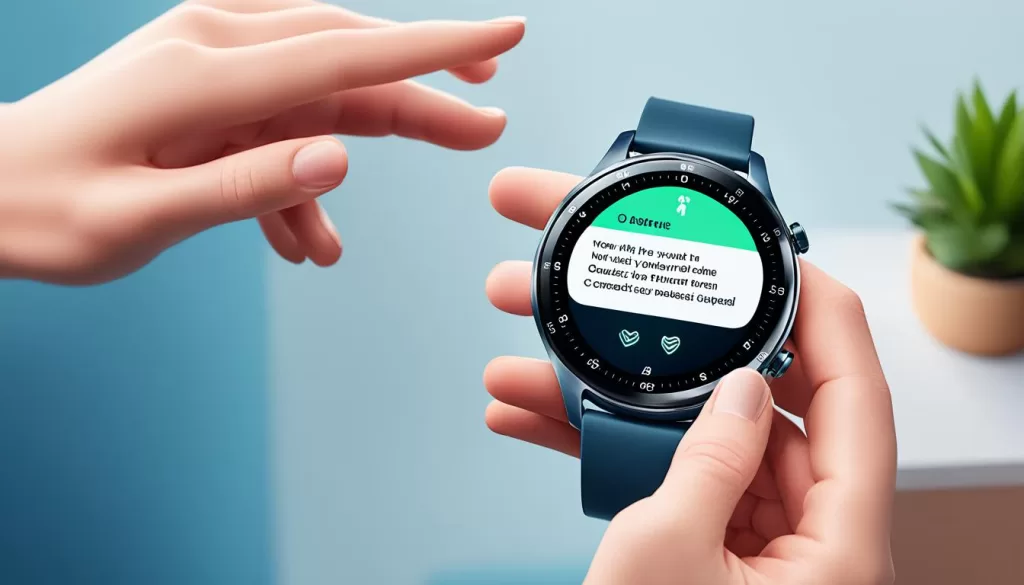
Updating through the Huawei Health app provides a seamless and user-friendly experience, ensuring that your watch is always up to date with the latest software enhancements and features.
Trouble with Update Transfer or Detection
If you’re experiencing trouble with the transfer of the update package or the detection of a new version on your Huawei Watch GT 3, there are a few troubleshooting steps you can take to resolve the issue.
First, make sure to disable Bluetooth on your phone and connect your watch to a stable Wi-Fi network before attempting the update. This can help in ensuring a smooth transfer and detection process.
If you’re still encountering detection problems, it’s advisable to wait for a few days as Huawei typically pushes updates in batches within a seven-day period. Waiting for the update to be pushed to your device can often resolve any detection issues you might be experiencing.
Additionally, it’s important to ensure that both your watch and the Huawei Health app have a stable network connection. A poor network signal can disrupt the transfer and detection process, so make sure you have a strong and steady connection before initiating the update.
By following these troubleshooting steps, you can overcome any issues related to update transfer or detection on your Huawei Watch GT 3 and ensure that your software stays up to date.
Download and Installation Problems
If you’re facing issues with downloading and installing the new watch version for your Huawei Watch GT 3, there are a few steps you can take to troubleshoot and resolve the problem. Follow the instructions below to fix the update error and successfully install the latest software on your smartwatch.
Step 1: Connect to a Stable Wi-Fi Network
To ensure a smooth download and installation process, make sure your Huawei Watch GT 3 is connected to a stable Wi-Fi network. This will help prevent any interruptions or connectivity issues during the update.
Step 2: Navigate to Settings
On your Huawei Watch GT 3, go to Settings and then select System & updates. This will take you to the update settings section of your watch.
Step 3: Download the Update Package
Once you’re in the update settings, select Update to start downloading the update package. Your watch will display a progress bar indicating the download status.
Step 4: Installation and Restart
After the download is complete, the installation process will automatically begin. Your watch will display a progress bar during the installation. Once the installation is finished, your watch will restart automatically.
If the update fails to verify, authenticate, or install, don’t worry. Try restarting your Huawei Watch GT 3 and repeat the download and installation process again. Sometimes, a quick restart can resolve any temporary issues that may have occurred during the update.
If the problem persists and you’re still unable to update your Huawei Watch GT 3 successfully, you may consider restoring your watch to its factory settings. Keep in mind that restoring the factory settings will erase all your personal data, so it’s essential to back up any important information before proceeding with this step.
By following these troubleshooting steps, you should be able to resolve the download and installation problems on your Huawei Watch GT 3 and ensure that your smartwatch is running on the latest software version.
Battery and Network Considerations
When it comes to updating your Huawei Watch GT 3 software, there are a few important considerations to keep in mind regarding battery and network connectivity. These factors play a crucial role in ensuring a smooth and successful update process.
Battery Level: Before attempting a software update, it’s essential to ensure that your watch has a battery level greater than 45%. If the battery level is lower, we recommend charging your watch before proceeding with the update. This will help prevent any interruptions or errors during the update process.
Network Stability: Another key aspect to consider is the stability of your Wi-Fi network. A poor network signal can significantly impact the download and installation process of the update package. To ensure a seamless update experience, make sure that your watch is connected to a stable Wi-Fi network with a strong signal.
By prioritizing these battery and network considerations, you can significantly increase the chances of a successful software update for your Huawei Watch GT 3.
Wait for Updates and Seek Support
If you’re unable to resolve the software update issue using the aforementioned steps, it might be worth waiting for a few days before checking for an update. Huawei typically pushes updates in batches within seven days, so a slight delay before receiving the new version is normal. However, if the problem persists or you encounter further difficulties, it’s advisable to back up your data and seek assistance from an authorized Huawei Customer Service Center. They can provide specialized support and help diagnose and resolve any underlying issues.
Enable Automatic Updates
To ensure that your Huawei Watch GT 3 stays up to date without any hassle, you can enable automatic updates on your device. This feature allows your watch to update automatically while charging. You can enable this setting through the Huawei Health app by navigating to Devices > Firmware update (or Me > Settings on iPhones), and then enabling the “Auto-download update packages over Wi-Fi” option. By enabling this feature, you can streamline the update process and ensure that your watch always has the latest software version.