
How To Factory Reset Huawei Watch GT 3
Are you experiencing issues with your Huawei Watch GT 3? Or perhaps you simply want to refresh your device? Whatever the reason, a factory reset can help. But how exactly do you go about resetting your Huawei Watch GT 3 to its factory settings? And what precautions should you take before doing so?
In this guide, we’ll walk you through the step-by-step process of resetting your Huawei Watch GT 3. From resetting through the device settings to restoring from a mobile phone, we’ve got you covered. We’ll also provide important considerations to keep in mind before performing a factory reset and troubleshoot any issues you may encounter along the way.
So, if you’re ready to learn how to bring your Huawei Watch GT 3 back to its original state or address any performance issues, read on.
Key Takeaways:
- Performing a factory reset on your Huawei Watch GT 3 can resolve issues and refresh your device.
- Back up any important data before initiating the factory reset to avoid permanent loss.
- You can reset your Huawei Watch GT 3 from the device settings or using the HUAWEI FamCare app on your mobile phone.
- Before resetting, ensure your watch is charged or connected to a power source.
- If you encounter any difficulties, consult troubleshooting steps or reach out to Huawei support for assistance.
Resetting Huawei Watch GT 3 from the Device Settings
To reset your Huawei Watch GT 3 from the device settings, follow these steps:
-
Access the configuration menu or “Settings” on your Huawei Watch GT 3.
-
Scroll or swipe to find “General” and tap on it.
-
Look for options like “Disconnect,” “Disconnect and reset,” or “Unpair,” and confirm your selection.
-
Your Huawei Watch GT 3 will restart and take a few minutes to restore to its factory state, optimizing the pre-installed applications on HarmonyOS 2.0.
Restoring Huawei Watch GT 3 from a Mobile Phone
If your Huawei Watch GT 3 is connected to a mobile phone, you can easily restore the watch to its factory settings using the HUAWEI FamCare app. Follow the simple steps below to reset your watch:
-
Open the HUAWEI FamCare app on your smartphone.
-
Tap on the menu icon located in the upper right corner of the home screen.
-
From the menu options, navigate to “Settings” and select “Reset watch”.
-
Before proceeding with the factory reset, it’s important to note that all call logs, chat records, messages, photos, and other data stored on your watch will be permanently deleted. Therefore, exercise caution and ensure you have a backup of any important data before proceeding.
-
Once you confirm the factory reset, your Huawei Watch GT 3 will begin the process. After the reset is complete, you will need to scan the QR code of the watch to link and manage it again. Data such as contacts and alarms will be synchronized from the cloud once the watch is linked to the HUAWEI FamCare app.
To help you visualize the process, here’s an image of the HUAWEI FamCare app:
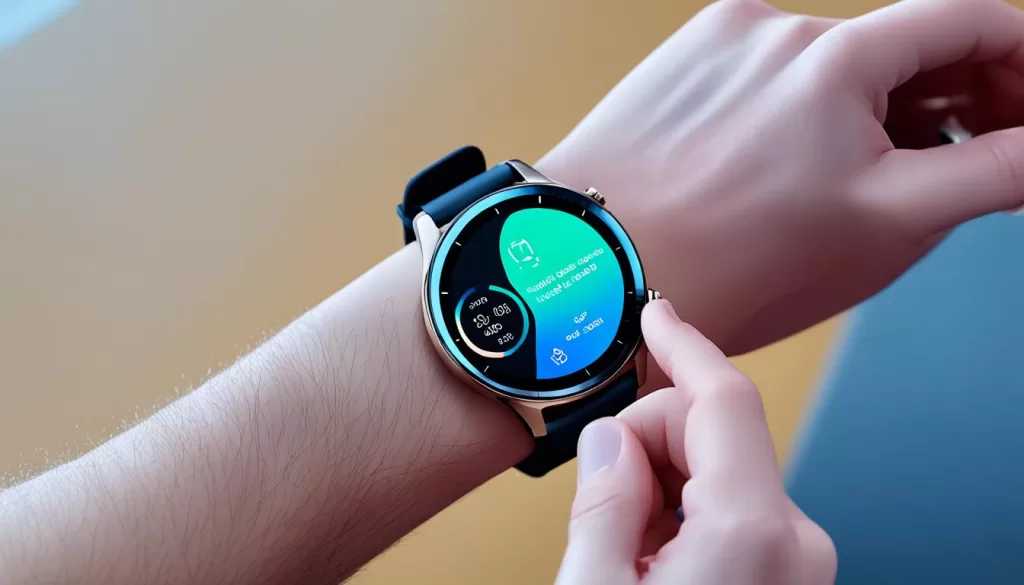
By following these steps, you can easily restore your Huawei Watch GT 3 to its factory settings using the HUAWEI FamCare app on your mobile phone.
Important Considerations before Factory Resetting Huawei Watch GT 3
Before performing a factory reset on your Huawei Watch GT 3, it’s essential to keep the following considerations in mind:
Backup Data before Factory Reset
To avoid permanent data loss, make sure to back up any important information, such as contacts, alarms, and settings, before initiating the factory reset. This will allow you to easily restore your data once the reset is completed. Take the time to sync your data to the cloud or transfer it to another device to ensure nothing is lost.
Ensure Adequate Power
Before initiating the factory reset process, ensure that your Huawei Watch GT 3 is adequately charged or connected to a power source. This will help prevent any interruptions during the reset, ensuring a smooth and successful process. It is recommended to have a minimum of 50% battery life before proceeding with the reset.
Account Credentials and Passwords
Take note of any passwords or account credentials associated with your Huawei Watch GT 3. After the factory reset, you may need to re-enter these credentials to regain access to certain apps and services. Keeping a record of your login information will make the setup process easier and prevent any unnecessary complications.
By considering these important factors, you can prepare yourself for a successful factory reset of your Huawei Watch GT 3, ensuring a smooth transition and minimizing the risk of data loss.
Troubleshooting Huawei Watch GT 3 Reset Issues
If you encounter any issues during the factory reset process for your Huawei Watch GT 3, there are a few troubleshooting steps you can try:
1. Ensure Sufficient Battery Life or Power Source
Before attempting a factory reset, make sure that your watch has sufficient battery life or is connected to a power source. A low battery level can interfere with the reset process.
2. Check for Software Updates
Check if there are any software updates available for your Huawei Watch GT 3 and install them before attempting the factory reset. Software updates can fix any bugs or issues that may be causing the reset failure.
3. Reset Using HUAWEI FamCare App
If the reset from the device settings doesn’t work, try resetting your watch through the HUAWEI FamCare app on your mobile phone. Open the app, go to “Settings,” and select “Reset watch.” Keep in mind that this will delete call logs, chat records, messages, photos, and other data, so ensure you have a backup.
4. Seek Professional Assistance
If all else fails, it’s recommended to contact Huawei support or visit an authorized service center for further assistance. They will be able to diagnose and resolve any complex issues that may be preventing the factory reset from completing.
Remember, troubleshooting steps may vary depending on the specific issue you’re facing. It’s always a good idea to refer to the official Huawei support documentation or reach out to their customer support for personalized assistance.
About Huawei Watch GT 3 Pro
The Huawei Watch GT 3 Pro is a smartwatch designed to enhance your smartwatch experience. With dimensions of 46.6 x 46.6 x 10.9 mm and a weight of 50 grams, it offers a sleek and lightweight design. The watch features a 1.43-inch screen, providing a clear and vibrant display for your notifications, health tracking, and other activities. Powered by the HarmonyOS 2.0 operating system, the Huawei Watch GT 3 Pro offers a seamless and intuitive user interface.
The watch comes equipped with a powerful processor, ensuring smooth performance and quick responsiveness. While the internal storage capacity is unspecified, it provides sufficient space for storing your data and essential apps. With HarmonyOS 2.0, you can enjoy a wide range of features and functionalities, including customizable watch faces, health tracking capabilities, and convenient communication options.
Whether you’re an avid fitness enthusiast or a tech-savvy individual, the Huawei Watch GT 3 Pro caters to your lifestyle and needs. It offers advanced fitness tracking features, such as heart rate monitoring, sleep tracking, and workout analysis, helping you stay on top of your health and wellness goals. The watch also supports various communication functions, such as notification alerts, message responses, and call management, allowing you to stay connected while on the go.
Experience the power of the Huawei Watch GT 3 Pro and the seamless integration of HarmonyOS 2.0. With its sleek design, advanced features, and intuitive user interface, this smartwatch delivers an exceptional wearable experience.
Precautions and Data Management for Huawei Watch GT 3 Factory Reset
Before initiating a factory reset on your Huawei Watch GT 3, it’s crucial to take some precautions to avoid permanent data loss. By backing up your important data, such as contacts, alarms, and settings, you can ensure a smooth transition and easily restore your information after the reset process.
One effective way to safeguard your data is by syncing it to the cloud. By doing so, you can conveniently retrieve and restore your contacts, alarms, and other settings right after completing the factory reset.
It’s important to note that a factory reset will delete all personal data stored on your watch. This includes call logs, messages, photos, and any other personalized information. Therefore, it’s essential to exercise caution and make sure you have a backup of these items before proceeding with the reset.
Remember, a factory reset is intended to restore your Huawei Watch GT 3 to its original state, potentially resolving any issues you may have been experiencing. By taking the necessary precautions and managing your data effectively, you can ensure a smooth transition and peace of mind throughout the process.
Conclusion
Resetting your Huawei Watch GT 3 through a factory reset can be a valuable solution for resolving issues and returning your device to its original state. Remember to safeguard your important data by backing it up before initiating the reset process. If you encounter any difficulties along the way, consult the provided troubleshooting steps or reach out to Huawei support for further assistance. Resetting your Huawei Watch GT 3 will give you a fresh start and enhanced functionality, ensuring a seamless smartwatch experience.
By following the step-by-step instructions provided in this guide, you can easily reset your Huawei Watch GT 3 using either the device settings or the HUAWEI FamCare app on your mobile phone. Whether you’re facing performance issues or simply want to start afresh, a factory reset will wipe all data on your watch, so it’s crucial to back up your important information beforehand. Take advantage of the seamless integration with the HUAWEI FamCare app to restore your watch’s settings, contacts, and other data from the cloud after the factory reset.
The Huawei Watch GT 3 offers innovative features and functionalities, powered by the HarmonyOS 2.0 operating system. It is a robust smartwatch designed to enhance your daily life. So, if you’re experiencing any problems with your Huawei Watch GT 3 or wish to start anew, don’t hesitate to perform a factory reset. Just remember to follow the precautions, back up your data, and troubleshoot any issues that may arise. Resetting your Huawei Watch GT 3 will ensure optimal performance, allowing you to leverage the full potential of your smartwatch.