
How to Fix Huawei Watch Fit Steps Count Not Accurate Issue
Do you rely on your Huawei Watch Fit to accurately track your steps, only to find that the count is not accurate? This issue can be frustrating, especially if you’re using the watch for fitness tracking. But fear not! In this article, we will explore various methods to fix the Huawei Watch Fit steps count not accurate issue and get you back on track with your fitness goals.
Key Takeaways:
- Check the physical activity permission settings in the Huawei Health app on your smartphone to ensure accurate tracking.
- Enable background running for the Huawei Health app to allow continuous steps tracking, even when your phone restarts.
- Try engaging in continuous exercise for at least one minute to give the watch enough time to accurately count your steps.
- If the issue persists, restart your phone to refresh the connectivity between the watch and the Huawei Health app.
- Consider wearing a compatible watch or band if your phone does not support step count or the Huawei Health app indicates unsupported count on your phone.
Check Physical Activity Permission Settings
One possible reason for the inaccurate steps count on the Huawei Watch Fit is the physical activity permission settings. To ensure accurate step tracking, it’s important to verify that the Huawei Health app has the necessary permissions. This can usually be done by following these steps:
1. Open the Huawei Health app on your connected smartphone.
2. Navigate to the app’s settings.
3. Look for the permissions section or a similar option.
4. Check if the app has permission to track physical activity, including steps count.
5. If the permission is disabled, enable it to allow the app to accurately track your steps.
By checking and adjusting these physical activity permission settings, you can ensure that your Huawei Watch Fit accurately counts your steps during your daily activities.
Enable Background Running for the Huawei Health App
If you’re experiencing issues with the steps count on your Huawei Watch Fit, enabling background running for the Huawei Health app can help ensure accurate tracking. By allowing the app to run in the background, it will continue to track your steps even if your phone restarts. This can be especially useful if you tend to restart your phone frequently or if you want uninterrupted step counting throughout the day.
Steps to Enable Background Running
The steps to enable background running may vary depending on your smartphone brand and model. However, you can typically find the option in the battery or power management settings of your phone. Look for the settings that control background activity and make sure that the Huawei Health app is allowed to run in the background.
Enabling background running for the Huawei Health app will ensure that your steps are consistently tracked, providing you with accurate data for your fitness journey. Now you can focus on achieving your step goals without worrying about missing out on any progress.
Ensure Continuous Exercise for Accurate Tracking
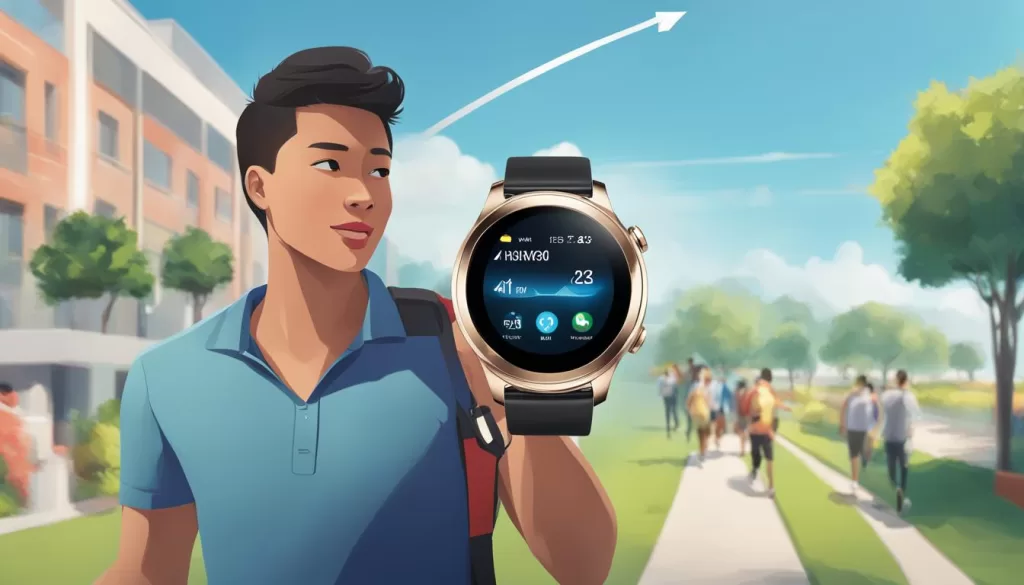
Sometimes, the Huawei Watch Fit requires a certain duration of continuous exercise to accurately track steps. If you find that your steps count is not increasing while on a walk, try exercising continuously for at least one minute. This gives the watch enough time to detect your activity and accurately count your steps.
Exercise is essential not just for your physical well-being but also for maintaining accurate tracking on your Huawei Watch Fit. By engaging in continuous exercise, you enable the watch’s sensors to properly detect your movements, resulting in more precise step counts. Whether it’s a brisk walk, a jog, or any other form of physical activity, make sure to exercise for at least one minute before checking your step count.
Continuous exercise is crucial because it allows the Huawei Watch Fit to differentiate intentional activity from general movement. During exercise, the watch can identify the specific motion patterns associated with walking, running, or other activities, ensuring accurate step tracking. Without continuous exercise, the watch may not detect your movements as deliberate steps, leading to an inaccurate step count.
Furthermore, continuous exercise helps calibrate and synchronize the watch’s sensors with your unique movement patterns. By engaging in physical activity for at least one minute, you provide the watch with sufficient data points to accurately track your steps throughout the day. This is particularly important if you often engage in tasks that involve minimal arm movement, such as carrying groceries or pushing a stroller.
Remember to maintain a consistent pace and avoid any extended pauses during your exercise. This allows the watch to stay in sync with your movements and accurately measure the duration and intensity of your activity. Additionally, try to exercise in areas with a stable GPS signal, as this can enhance the overall accuracy of your step counts.
Incorporating continuous exercise into your daily routine not only ensures accurate step tracking on your Huawei Watch Fit but also promotes a healthier lifestyle. So, the next time you take a walk or engage in any physical activity, make sure to exercise continuously for at least one minute, and let your Huawei Watch Fit accurately track your every step.
Restart Your Phone
If the steps count issue on your Huawei Watch Fit persists, restarting your phone can be a simple solution. Restarting the phone helps refresh the connectivity between the watch and the Huawei Health app, potentially resolving any syncing or tracking issues. It’s important to note that restarting your phone will not affect your data or settings on the watch. To restart your phone, follow the manufacturer’s instructions specific to your device.
After restarting your phone, it’s recommended to sync the data in the Huawei Health app to ensure all the latest information from your watch is captured. To sync the data, open the Huawei Health app and swipe down on the home screen. This action triggers a manual sync, ensuring that any steps recorded on your watch are accurately reflected in the app.

Wear a Watch/Band for Accurate Step Count
If your phone does not support step count or the Huawei Health app indicates that step count is not supported on your phone, an alternative solution is to wear a compatible watch or band. By linking the watch or band to the Huawei Health app, you can track your steps accurately. Note that the step count may differ between the watch/band and the phone due to different detection modes and merging of data in the Huawei Health app.
To ensure accurate step counting, wearing a dedicated watch or band specifically designed for fitness tracking can be beneficial. These devices are designed with advanced sensors and algorithms to provide precise step count measurements. By wearing a watch or band on your wrist, it can capture your movements more accurately than relying solely on the phone.
When choosing a compatible watch or band, consider factors such as comfort, durability, and compatibility with the Huawei Health app. Look for models that offer features like GPS tracking, heart rate monitoring, and sleep tracking, depending on your personal fitness goals.
By wearing a watch/band for accurate step count, you can ensure that your Huawei Watch Fit accurately tracks your steps, providing you with reliable fitness data to monitor your progress and achieve your fitness goals.
Contact Huawei Support for Further Assistance
If you have tried all the above solutions and are still experiencing issues with the steps count on your Huawei Watch Fit, it is recommended to reach out to Huawei Support for further assistance. Contacting Huawei Support will provide you with access to specialized help and troubleshooting specifically tailored for Huawei device users.
When seeking assistance, it is important to back up your data to avoid any potential loss of information. This ensures that your valuable fitness tracking and personal data are safeguarded throughout the troubleshooting process. Huawei Support agents will be able to guide you through the necessary steps to address the steps count issue and provide you with further instructions.
To contact Huawei Support, visit the official Huawei website or refer to the contact information provided with your Huawei Watch Fit. Huawei Customer Service Centers are available to assist you and provide the support you need to resolve the steps count issue and enhance your overall user experience with the Huawei Watch Fit.