
How to Fix Huawei Watch Fit Not Charging Issue
Have you ever experienced the frustration of your Huawei Watch Fit not charging when you need it the most? It can be incredibly inconvenient and leave you feeling helpless. But fear not, there are solutions to this common problem that can save you time and frustration.
From a flashing charging icon to slow or no charging at all, there are several reasons why your Huawei Watch Fit may not be charging properly. But what causes this issue, and how can you troubleshoot and fix it?
In this article, we will explore the possible causes of the Huawei Watch Fit not charging issue and provide you with step-by-step instructions on how to troubleshoot and resolve the problem. Whether it’s a simple fix or a hardware issue, we’ve got you covered.
So, if you’re tired of dealing with a watch that refuses to charge, read on to discover the solutions that will have your Huawei Watch Fit up and running in no time.
Key Takeaways:
- Using the original wireless charger and adapter is recommended for optimal charging.
- Ensure there are no foreign objects between the watch and the charger during charging.
- Update the watch to the latest software version and avoid charging in high-temperature or high-humidity environments.
- Perform basic troubleshooting steps like cleaning the charging port and pins, restarting the watch, and updating the software.
- If the issue persists, seek assistance from an authorized Huawei Customer Service Center.
Quick Fixes for Huawei Watch Fit Not Charging Issue
If you’re experiencing troubles with your Huawei Watch Fit not charging, there are several quick fixes you can try before seeking professional assistance. These troubleshooting steps can help you troubleshoot and resolve the issue on your own.
1. Check the Charging Alignment
Before attempting any other fixes, ensure that the charging pins on the watch are properly aligned with the charging port. Misalignment can prevent a secure connection and hinder the charging process. Adjust the placement of the watch on the charger to ensure proper alignment before plugging it in.
2. Clean the Charging Port and Pins
Dirt, dust, or debris can accumulate on the charging port and pins over time, obstructing the charging process. Use a soft cloth or cotton swab to gently clean the charging port and pins. This will help establish a clean and effective connection between the watch and the charger.
3. Verify the Power Cable and Source
Occasionally, the power cable or source may be the cause of the charging issue. Test the cable on another device or consider using a different compatible cable to verify if the original cable is faulty. Additionally, ensure that the power source you’re using is providing electricity and functioning properly.
4. Avoid Charging from a Laptop USB Port
Charging a smartwatch from a laptop USB port may not provide sufficient power for charging, leading to slow or no charging at all. To ensure optimal charging, use a power socket or a wall adapter to connect the charger to a reliable power source.
5. Restart the Watch and Update Software
Restarting the watch can help resolve any software-related issues that may be interfering with the charging process. In addition, make sure that your watch’s software is up to date. Check for software updates and install them if available to ensure compatibility and optimal performance.
6. Perform a Factory Reset if Necessary
If all else fails, performing a factory reset on your Huawei Watch Fit can help resolve persistent charging issues. Keep in mind that a factory reset will erase all data and settings on the watch, so make sure to back up any important information before proceeding with this step. Follow the manufacturer’s instructions to perform a factory reset on your specific watch model.
By following these quick fixes, you can troubleshoot and resolve the Huawei Watch Fit not charging issue on your own. If the problem persists, it may indicate a hardware issue, and it is advisable to seek professional assistance from an authorized Huawei Customer Service Center.
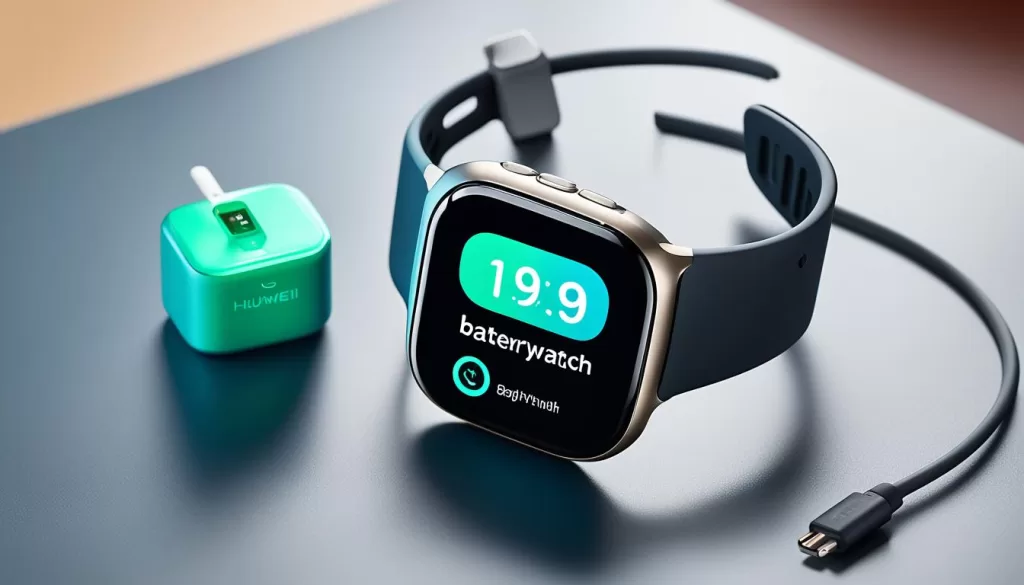
Ensuring Proper Charging for Huawei Watch Fit
When troubleshooting the Huawei Watch Fit not charging issue, it is essential to take certain steps to ensure proper charging and maintain the optimal performance of your device. By following these guidelines, you can troubleshoot and fix any charging issues you may encounter.
Proper Alignment and Cleaning
One of the key factors in ensuring proper charging for your Huawei Watch Fit is to align the charging pins with the charging port correctly. Make sure the pins are securely connected to the port to establish a reliable charging connection.
Regularly clean the charging port and pins to remove any dirt or debris, as these can hinder the charging efficiency. Keep the charging area free from any obstructions to ensure a consistent charging experience.
Original Charger and Certified Adapter
For optimal charging performance, it is recommended to use the original Huawei wireless charger that comes with your Huawei Watch Fit. Additionally, use a certified adapter with the recommended specifications, such as a 5V/2A adapter or a higher-specification adapter.
Avoid High-Temperature and High-Humidity Environments
Avoid charging your Huawei Watch Fit in high-temperature or high-humidity environments, as these conditions can affect the charging process and potentially damage the device. Find a cool and dry area to charge your watch for optimal results.
Regular Software Updates
Regularly update your Huawei Watch Fit to the latest software version. Software updates often include bug fixes and improvements, which can enhance the compatibility with the charging process and address any charging-related issues.
Restart and Retry
If your Huawei Watch Fit fails to charge, try removing it from the charger, restarting the device, and then reattempting the charging process. Sometimes, a simple restart can resolve minor glitches and restore proper charging functionality.
Avoid Non-Standard Chargers and Wireless Charging Stands
Avoid using non-standard chargers or wireless charging stands, as these may lead to inefficient charging or even cause overheating. Stick to the original Huawei charger and compatible accessories to ensure a safe and effective charging experience.
If you have tried all the troubleshooting steps and the Huawei Watch Fit not charging issue persists, it is recommended to seek professional assistance from an authorized Huawei Customer Service Center. They can provide further guidance and support to resolve any hardware or software-related charging issues.

Troubleshooting Hardware Issues for Huawei Watch Fit Not Charging
If all troubleshooting steps have been followed and your Huawei Watch Fit is still not charging, it could indicate a potential hardware issue. In such cases, there are a few steps you can take to address the problem.
1. Check Warranty: Consider checking if your watch is still under warranty. If it is, you may be eligible for repair or replacement options provided by Huawei.
2. Professional Repair or Replacement: If the issue is determined to be a faulty motherboard or watch battery, professional repair or replacement may be required. Contact an authorized Huawei Customer Service Center for assistance.
3. Consider a New Watch: If no feasible solution is available or the cost of repair is prohibitive, purchasing a new high-quality watch might be a worth considering.
Remember, it’s important to exhaust all troubleshooting options before concluding that the issue is due to hardware problems. If you are unsure or have exhausted all options, it’s always best to seek assistance from professionals who can provide accurate diagnosis and remedies.
Resolving Specific Issues for Huawei Watch Fit Not Charging
In addition to troubleshooting hardware issues, there are some specific issues you might encounter with your Huawei Watch Fit not charging. Here are some steps you can take to address them:
- If the watch does not turn on after tapping the screen, ensure proper alignment between the charging port and the charging pad on the back of the watch.
- If the watch does not display the heartbeat, make sure it is worn on the wrist tightly and consider resetting the watch using the button on the back of the charger.
- If the watch shows a line through the Bluetooth sign on the display screen, ensure that both the watch and the paired device have Bluetooth turned on and are within range. Check if the Huawei Fit app is installed and open when connecting the devices.
- If the LCD screen fails to detect touch gestures, ensure that the battery is charged above the minimum level for accurate touch response. If necessary, the screen may need to be repaired or replaced.
- If the watch does not vibrate when there is a new notification, check the notification settings on the paired device and consider repairing or replacing the motor if it is defective.
Resolving Specific Issues for Huawei Watch Fit Not Charging
If your Huawei Watch Fit does not turn on after tapping the screen, it may be due to improper alignment between the charging port and the charging pad on the back of the watch. Ensure that the watch is securely connected to the charger for proper charging.
If the watch fails to display the heartbeat, check if it is worn tightly on your wrist. You can also try resetting the watch by using the button on the back of the charger. This may resolve any issues with the heart rate sensor.
In case you see a line through the Bluetooth sign on the watch’s display screen, make sure that both the watch and the paired device have Bluetooth turned on and are within range. Additionally, ensure that the Huawei Fit app is installed and open when connecting the devices to establish a proper connection.
If the LCD screen of your Huawei Watch Fit does not detect touch gestures, it could be a battery-related issue. Ensure that the battery is charged above the minimum level, as low battery may affect touch response. If the problem persists, consider seeking assistance to repair or replace the screen if necessary.
If your watch does not vibrate when there is a new notification, first check the notification settings on the paired device. If the settings are correct and the issue persists, it could indicate a defective motor. Consider repairing or replacing the motor to restore the vibration functionality.