
How to Fix Garmin Forerunner 945 Software Won’t Update Issue
Are you facing trouble updating the software on your Garmin Forerunner 945? Don’t worry, you’re not alone. Many users have encountered this frustrating issue that prevents them from enjoying the latest features and improvements. But fear not, because we have the solution that will get your watch up to date in no time!
Whether you’re experiencing a stubborn firmware update problem, a software update failure, or an update error, we have the troubleshooting steps you need to overcome these issues. In this article, we will guide you through the process of fixing the Garmin Forerunner 945 software update bug and help you get your watch updated successfully.
So, if you’re ready to take control of your Garmin Forerunner 945 and enjoy all the benefits of the latest software version, let’s dive in!
Key Takeaways:
- Troubleshooting the Garmin Forerunner 945 software update issue
- Checking for compatibility issues with software versions
- Performing a soft reset to resolve update problems
- Ensuring a stable Wi-Fi connection for successful updates
- Manually installing the update if the automatic process fails
Check for Compatibility Issues
Before proceeding with any troubleshooting steps, it is important to ensure that your Garmin Forerunner 945 is running compatible software versions. Incompatible software versions can cause issues with the update process, leading to firmware compatibility issues and software update failures. To avoid encountering these problems, it is crucial to check the compatibility of your device’s software with the available updates.
To check the software compatibility of your Garmin Forerunner 945, follow these steps:
- Access the settings menu on your Garmin Forerunner 945.
- Scroll down and select the “Software Update” option.
- Check the current software version displayed on your device.
- Visit the Garmin website or consult the Garmin support documentation to find the latest compatible software version for your Forerunner 945.
- Compare the current version on your device with the available updates to ensure compatibility.
If you find that your device’s software version is incompatible with the available updates, it is recommended to take the necessary steps to resolve this issue before proceeding with the software update.
Ensuring software compatibility is essential for a smooth and successful update process. By checking for compatibility issues, you can prevent any firmware compatibility problems and ensure a seamless software update for your Garmin Forerunner 945.
Perform a Soft Reset
If you’re experiencing software update issues with your Garmin Forerunner 945, performing a soft reset can often help resolve the problem. This simple troubleshooting step can help reset the device and allow the software update to proceed smoothly.
To perform a soft reset on your Garmin Forerunner 945, follow these steps:
- Press and hold the power button on your watch for 15 seconds.
- Release the power button once the watch turns off.
- Turn the watch back on.
Performing a soft reset can help fix any temporary software glitches or conflicts that may be preventing the update from completing successfully. Once you’ve performed the soft reset, check if the software update process can now proceed as expected.
If the soft reset doesn’t resolve the issue, don’t worry. There are additional troubleshooting steps you can try to troubleshoot and fix the software update issue on your Garmin Forerunner 945. Keep reading to learn more about these troubleshooting methods.
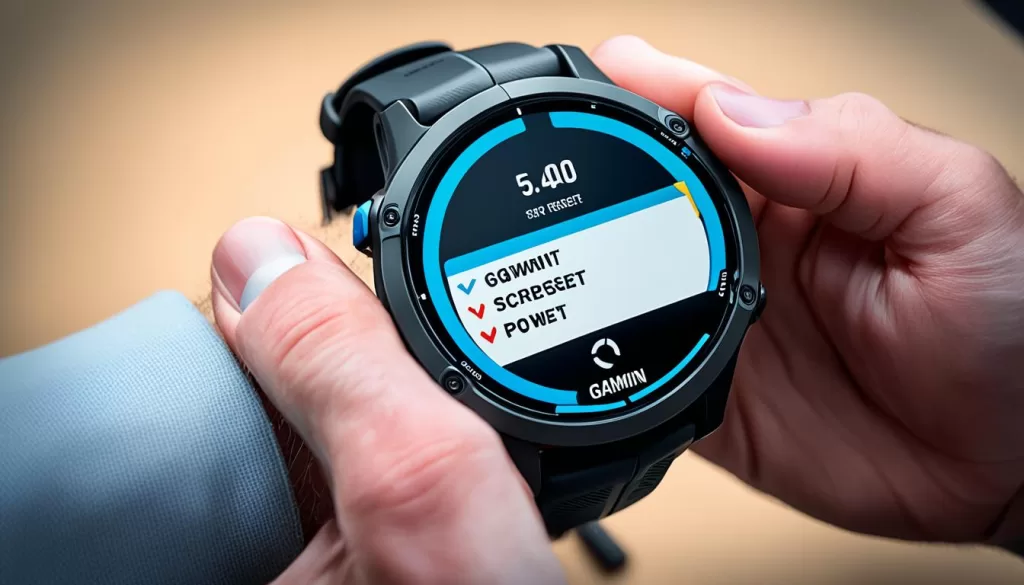
Check the Wi-Fi Connection
A stable Wi-Fi connection is crucial for a successful software update on your Garmin Forerunner 945. To ensure a smooth update process, it is important to make sure that your watch is connected to a stable and reliable Wi-Fi network.
Begin by checking if your watch is connected to the correct Wi-Fi network. Verify that you are using the correct network name and password. If you are unsure, consult your network administrator or refer to the Wi-Fi settings on your watch for assistance.
Once you have confirmed the correct Wi-Fi network, check if there are any connectivity issues. Make sure that your Wi-Fi signal is strong enough and that you are within range of your router. If you are experiencing weak or unstable Wi-Fi signals, consider moving closer to the router or using a Wi-Fi extender to improve the connection.
In some cases, troubleshooting Wi-Fi issues may involve restarting your router or resetting its settings. Refer to the user manual or contact your Internet Service Provider for instructions on how to perform these actions.
By ensuring a stable internet connection, you can minimize the risk of interruptions during the software update process on your Garmin Forerunner 945. Take the necessary steps to troubleshoot and resolve any Wi-Fi issues, allowing for a smooth and successful update experience.
Image
Manually Install the Update
If the automatic software update process is not working for your Garmin Forerunner 945, don’t worry! You can try manually installing the update to resolve the issue. Here’s how:
Step 1: Check for Available Update Files
First, visit the Garmin website or open Garmin Express to check if there are any available update files for your Garmin Forerunner 945. Look for the latest software version specifically designed for your device.
Step 2: Download the Update File
Once you have found the appropriate update file, download it to your computer. Make sure to save it in a location where you can easily find it.
Step 3: Connect Your Garmin Forerunner 945
Connect your Garmin Forerunner 945 to your computer using a compatible USB cable. Ensure that the watch is securely connected and recognized by your computer.
Step 4: Install the Update
Open the downloaded update file, and carefully follow the provided instructions to install the update onto your Garmin Forerunner 945. Make sure to read and understand each step before proceeding.
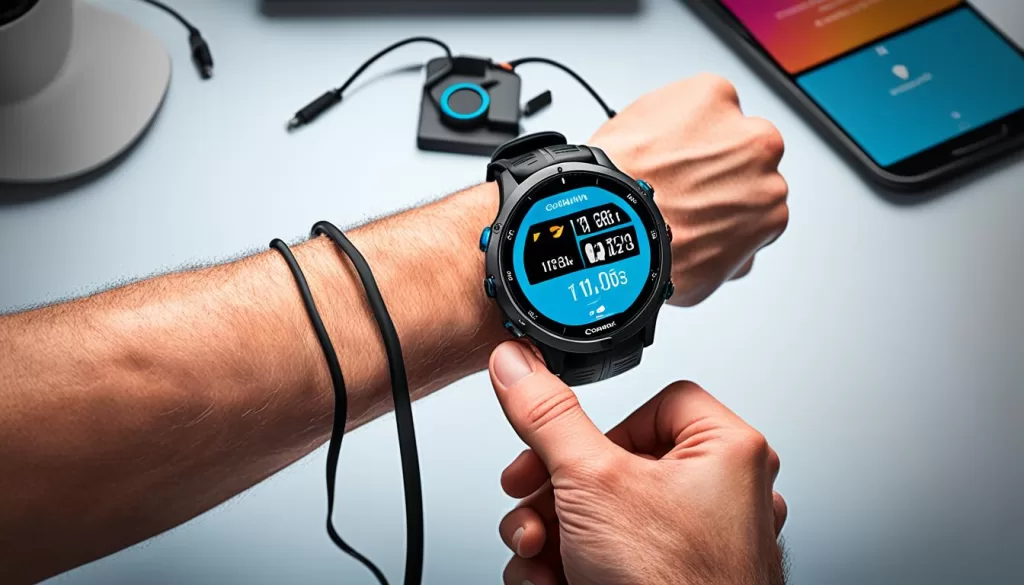
Step 5: Verify the Update
Once the installation is complete, disconnect your Garmin Forerunner 945 from your computer and turn it on. Check if the software update has been successfully installed. Your device should now be running the latest firmware version.
By manually installing the update, you can bypass any issues that may have been preventing the automatic update process from working. This method allows you to take control of the update installation and ensures that your Garmin Forerunner 945 is running the most up-to-date software.
Downgrade and Upgrade the Software
In some cases, you may encounter difficulties updating the software on your Garmin Forerunner 945. However, there is a troubleshooting method that has proven to be effective for resolving software update issues. It involves downgrading the current software version on your device and then upgrading it to the desired version. This process has helped many users successfully update their devices.
To begin, you will need to follow the specific steps provided by Garmin to downgrade the software on your Garmin Forerunner 945. These steps may vary depending on the software version you currently have installed. Once you have successfully downgraded the software, you can proceed to upgrade it again to the desired version.
Ensure that you carefully follow the instructions provided by Garmin during the software downgrade and upgrade processes. It is essential to select the correct software versions to avoid any compatibility issues or further update failures. By downgrading and upgrading the software on your Garmin Forerunner 945, you can potentially overcome any software update issues you may be experiencing.
Remember, this troubleshooting method may not be suitable for all situations, and it is always recommended to consult Garmin’s official documentation or reach out to their customer support for further assistance if needed. Following their guidance can help ensure a successful software update on your Garmin Forerunner 945.
Contact Garmin Support
If you have followed all the troubleshooting steps and are still unable to update the software on your Garmin Forerunner 945, it may be necessary to contact Garmin customer support for further assistance. Seeking help from the experts can provide personalized guidance and help resolve any specific issues you may be experiencing with the software update process.
Garmin support is available to assist you in resolving software update problems for your Garmin Forerunner 945. You can reach out to their customer support team through their official website or contact them via phone.
When contacting Garmin support, be sure to provide them with detailed information about the software update issue you are facing. This will help them better understand your problem and provide a more effective solution. The support team will guide you through the necessary steps and offer technical assistance until your software update issue is resolved.