
How to Fix Garmin Forerunner 745 Steps Count Not Accurate Issue
If you rely on your Garmin Forerunner 745 to track your steps, it can be frustrating when you notice that the step count is not accurate. Whether it’s counting too few steps or adding extra ones, an inaccurate step count can throw off your fitness goals and overall tracking accuracy. But fear not, there are steps you can take to fix this issue and ensure that your Garmin Forerunner 745 provides accurate step tracking.
In this article, we will take you through troubleshooting steps to fix the inaccurate step count on your Garmin Forerunner 745. From calibrating your device to checking your settings, we’ll cover all the necessary actions you can take to resolve this issue. We’ll also provide tips on how to maintain accurate step counting and address common misconceptions.
So, if you’re ready to take control of your step tracking and get accurate results with your Garmin Forerunner 745, let’s dive in.
Key Takeaways:
- Ensure your Garmin Forerunner 745 is properly calibrated to improve step count accuracy.
- Check your activity tracking settings on both your watch and the Garmin Connect app.
- Keep your device’s firmware up to date for bug fixes and improvements.
- Troubleshoot any syncing issues between your Garmin Forerunner 745 and the Garmin Connect app.
- Wear your device correctly and be mindful of potential factors that may affect step count accuracy.
Restarting Your Garmin Forerunner 745
One of the first troubleshooting steps to take when your Garmin Forerunner 745 is not counting steps accurately is to restart the device. This can clear any temporary glitches or errors that may be affecting the step count accuracy.
To restart your Garmin Forerunner 745, simply hold down the power button until the device turns off, then press the power button again to turn it back on. This should not erase any data stored on your watch.
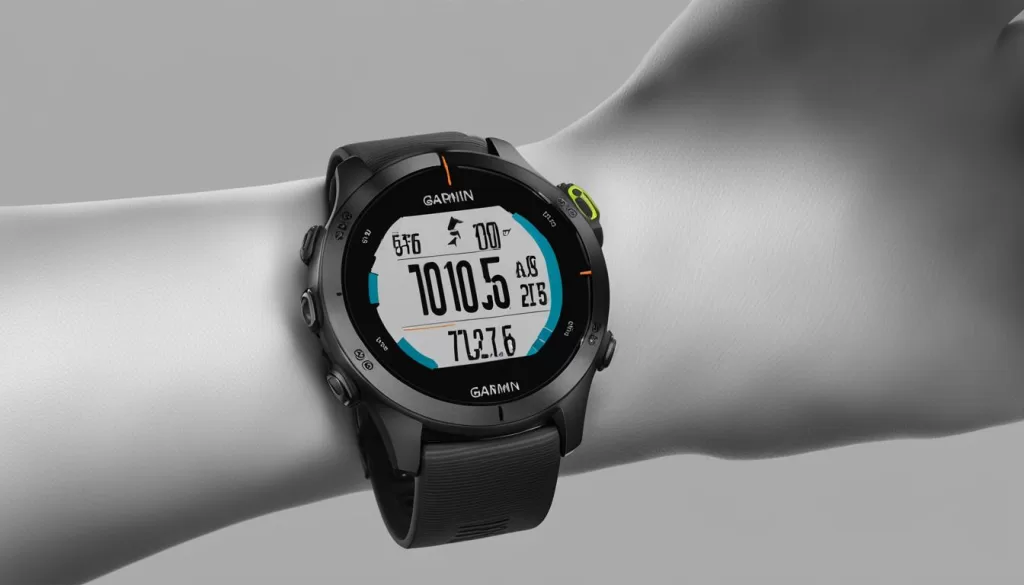
Restarting your Garmin Forerunner 745 is a simple yet effective way to resolve step count accuracy issues. By performing a restart, you give the device a fresh start and the opportunity to recalibrate its sensors and functions. This can help eliminate any temporary software or hardware glitches that may be causing inaccuracies in step count tracking.
Remember to restart your Garmin Forerunner 745 periodically, especially if you notice consistent inaccuracies or sudden changes in step count. It is a quick and easy troubleshooting step that can potentially resolve the issue without the need for further intervention or advanced technical knowledge.
Verify Activity Tracking Settings
Another possible cause of inaccurate step count on the Garmin Forerunner 745 is if the activity tracking settings are not properly configured. It’s important to make sure that activity tracking is switched on in the settings of your device.
You can do this by going to the settings screen on your watch, selecting Activity Tracking>Status, and ensuring that it is set to “On” or in the green position. Additionally, you can check and make changes to this setting using the Garmin Connect app on your smartphone or the website dashboard.

Upgrade Firmware
Keeping your Garmin Forerunner 745’s firmware up to date is crucial for optimal performance and accurate step count tracking. Firmware updates often include bug fixes and improvements that can address issues with step count accuracy.
To check if your device has the latest firmware version, follow these steps:
1. Press the Menu button on your watch.
2. Go to Settings.
3. Select About.
4. Compare the software number displayed on your watch to the one listed by Garmin.
If an update is available, you have two options to upgrade your firmware:
Smartphone App:
1. Install the Garmin Connect app on your smartphone (if you haven’t already).
2. Open the app and make sure your watch is paired.
3. Look for any available firmware updates and follow the on-screen instructions to install them.
Computer:
1. Connect your watch to a computer using Garmin Express (download link).
2. Open Garmin Express and ensure your watch is detected.
3. If an update is available, click on the install button.
Once the update is complete, your Garmin Forerunner 745 will have the latest firmware, improving its performance and accuracy when counting your steps.
Troubleshooting Syncing Issues
Sometimes the step count on your Garmin Forerunner 745 may not sync properly with the Garmin Connect app, leading to inaccurate step count readings. To resolve syncing issues, follow the steps below:
1. Install and Activate Garmin Connect
Ensure that you have Garmin Connect installed on your smartphone. This app is essential for syncing your Garmin Forerunner 745 with your device. Activate Bluetooth on your smartphone to establish a connection between your watch and the app.
2. Check Pairing Mode
Double-check if your Garmin device is in pairing mode. This mode enables your watch to connect with the Garmin Connect app. If necessary, refer to your Garmin Forerunner 745’s user manual or settings menu to enable pairing mode.
3. Restart Bluetooth
If you’re still facing syncing issues, try switching off and on both Bluetooth on your phone and your Garmin device. Sometimes, restarting Bluetooth can resolve connectivity problems between the two devices.
4. Reinstall Garmin Connect
If the syncing issue persists, consider reinstalling the Garmin Connect app on your smartphone. Uninstall the app and then download it again from the official app store. This process can help resolve any software conflicts or issues that may be affecting syncing.
5. Update Software
Make sure that both your Garmin Forerunner 745 and the Garmin Connect app are running the latest software versions. Check for any available updates in the settings menu of both your watch and the app. Update the firmware as necessary to eliminate any compatibility problems that may be causing syncing issues.
By following these troubleshooting steps, you can fix the syncing issues between your Garmin Forerunner 745 and the Garmin Connect app, ensuring accurate step count readings.
Additional Tips for Accurate Step Counting
In addition to the troubleshooting steps mentioned above, there are a few more tips to help ensure accurate step counting on your Garmin Forerunner 745.
First, make sure you are wearing the device correctly. It should be snug against your wrist or properly positioned on your hip. This ensures that the sensors on the device have optimal contact with your body and can accurately track your steps. Avoid wearing long sleeves or anything that might obstruct the sensors.
Remember that step count accuracy can vary between different wearables, including fitness trackers and smartwatches. The accuracy of your Garmin Forerunner 745 may not perfectly align with other devices. To make accurate comparisons, it’s best to consistently use the same device for tracking your steps.
If you have tried all the troubleshooting steps and are still experiencing issues with inaccurate step count on your Garmin Forerunner 745, it’s recommended to contact Garmin customer support. They can provide further assistance and troubleshooting to help resolve the problem.