
How To Factory Reset Fitbit Versa 2
Are you having trouble with your Fitbit Versa 2? Is it not working properly or experiencing issues? Before you start panicking and thinking about buying a new smartwatch, have you considered performing a factory reset?
A factory reset can be a useful solution to refresh your Fitbit Versa 2 and solve various problems you may encounter. Whether it’s freezing, not syncing, or simply not responding as it should, a factory reset can often provide a fresh start and resolve these issues.
But how exactly do you perform a factory reset on your Fitbit Versa 2? And what are the different ways you can reset your device? Read on to find out.
Key Takeaways:
- To factory reset your Fitbit Versa 2, you can navigate to the “Settings” menu, select “About,” and then choose “Factory Reset”.
- You can also perform a hard restart by holding down the side button until you see the Fitbit logo.
- If you want to simply restart your Versa 2 without performing a factory reset, you can press and hold the side button for a few seconds until the Fitbit logo appears.
- If your Versa 2 is frozen and unresponsive, a hard restart can help fix the issue.
- It’s important to troubleshoot common issues before resorting to a factory reset. Try restarting your device, checking settings, and updating firmware.
How to Restart Fitbit Versa 2
If you’re looking to simply restart your Fitbit Versa 2 without performing a factory reset, follow these steps:
-
Step 1: Press and hold the side button on your Versa 2 for 10-15 seconds.
-
Step 2: Release the button when you see the Fitbit logo appear on the screen.
This soft restart will give your Versa 2 a fresh start, which can be helpful if you’re experiencing minor issues or glitches. It allows you to quickly resolve any temporary problems without erasing any data from your device.
When you encounter small issues with your Versa 2, performing a soft restart can often resolve them and improve the overall performance of your smartwatch.
For additional troubleshooting or if you want to completely power off your Fitbit Versa 2, refer to the next sections.
Perform a Hard Restart on Fitbit Versa 2
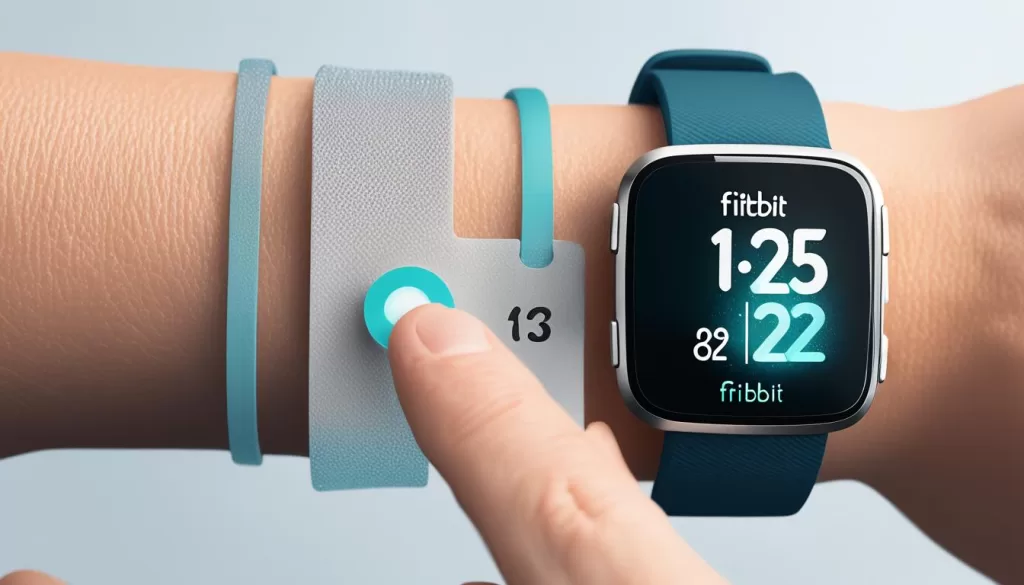
If your Fitbit Versa 2 is frozen and unresponsive, a hard restart can help resolve the issue. Follow these steps to perform a hard restart on your Versa 2:
-
Press and hold the side button on your Versa 2 for 10-15 seconds until the screen turns off.
-
Continue holding the button until you see the Fitbit logo appear on the screen, indicating that the device is restarting.
This force restart can effectively fix any freezing or unresponsive behavior you may be experiencing with your Versa 2.
If you have an image to go along with this section, it could be placed here:
How to Power Off Fitbit Versa 2
If you need to fully power off your Fitbit Versa 2, you can follow these steps:
- Go to the “Settings” menu on your Versa 2.
- Scroll down to find the “About” option.
- Select “About” and then choose “Shutdown.”
This will completely turn off your Versa 2. To power it back on, simply hold the side button for a few seconds until the device powers up again.
This method can be helpful if you want to conserve battery or if you need to restart your Versa 2 after it has been turned off.
In the image above, you can see the visual representation of the steps mentioned to turn off your Fitbit Versa 2.
Troubleshooting Fitbit Versa 2 Issues
If you’re experiencing issues with your Fitbit Versa 2, it’s important to troubleshoot the problem before resorting to a factory reset. Common problems you may face include syncing issues, unresponsiveness to taps or button presses, and failure to track steps or display notifications. Follow these troubleshooting steps to resolve the issues:
1. Restart your device: A simple restart can often fix minor glitches. Press and hold the side button on your Versa 2 for 10-15 seconds until the screen turns off, then release the button and wait for the device to restart.
2. Ensure proper charging: Make sure your Versa 2 has enough battery power. Connect it to the charger and ensure it’s properly aligned. Wait for a few minutes and check if the issues are resolved.
3. Check settings and app permissions: Verify that the settings on your Versa 2 and the Fitbit app are properly configured. Ensure the necessary permissions are enabled for the app to function correctly.
4. Update firmware: Outdated firmware can cause compatibility issues and performance problems. Check for any available firmware updates in the Fitbit app and install them if necessary.
If these troubleshooting steps don’t resolve the issues you’re facing with your Fitbit Versa 2, a factory reset may be necessary. However, keep in mind that a factory reset will erase all personal data and settings on your device, so it should be done as a last resort. Before proceeding with a factory reset, consider backing up your Fitbit data and settings through the Fitbit app or website.
Factory Resetting Other Fitbit Devices
If you own a different Fitbit device, such as the Fitbit Charge, Fitbit Inspire, Fitbit Ace, Fitbit Alta, or Fitbit Blaze, the factory reset process may vary slightly. Refer to the official Fitbit support page or user manual for your specific device to find the instructions for performing a factory reset. The process typically involves accessing the “Settings” or “Device Info” menu on your Fitbit device and selecting the option to reset or clear user data.
If you’re unsure about how to factory reset your Fitbit Charge, Fitbit Inspire, Fitbit Ace, Fitbit Alta, or Fitbit Blaze, it’s always best to consult the official resources provided by Fitbit. The support page or user manual will guide you through the specific steps necessary to perform a factory reset on your particular device.
Performing a Factory Reset on Fitbit Charge
To factory reset your Fitbit Charge, follow these steps:
- Open the Fitbit app on your phone and tap on the Charge device icon.
- Go to the device settings screen.
- Scroll down to the troubleshooting section and tap on “Factory Reset.”
- Follow the on-screen prompts to confirm the reset.
Remember to sync your Fitbit Charge with the app before performing a factory reset to ensure your data is backed up.
Performing a Factory Reset on Fitbit Inspire, Ace, Alta, or Blaze
For Fitbit Inspire, Ace, Alta, or Blaze devices, the factory reset process is similar:
- Access the settings menu on your Fitbit device.
- Navigate to “About” or “Device Info.”
- Look for the option to reset or clear user data.
- Follow the on-screen instructions to confirm the factory reset.
Remember to consult the official Fitbit resources for your specific device to ensure you follow the correct steps for a successful factory reset.
Performing a factory reset on your Fitbit device can help resolve software glitches or other issues you may be experiencing. However, it’s important to note that a factory reset will erase all data on your device, so be sure to back up any important information before proceeding.
Tips for Factory Resetting Fitbit Devices
Before performing a factory reset on your Fitbit device, it’s important to keep in mind a few tips to make the process smoother. One crucial step is to back up your Fitbit data to prevent any loss of important information. You can easily do this by syncing your device with the Fitbit app or website. By doing so, you can ensure that your data is securely saved and can be restored after the reset.
Once you’ve completed the factory reset, you will need to set up your Fitbit device again. This involves going through the initial setup process, which may include connecting your Fitbit to your phone or computer, setting up your profile, and customizing your settings according to your preferences. By following the on-screen instructions, you can quickly get your Fitbit device up and running again.
Remember that performing a factory reset will wipe all data and settings from your Fitbit device, returning it to its original state. Therefore, it’s crucial to back up any important data and be prepared to invest a few minutes in the setup process. By doing so, you can smoothly factory reset your Fitbit device and ensure a seamless transition to your desired preferences post-reset.