
How to Fix Fitbit Sense Not Charging Issue
Are you frustrated with your Fitbit Sense not charging? Don’t worry, you’re not alone. Many Fitbit Sense users face this common issue, but the good news is that there are several potential solutions to troubleshoot and resolve it. So, before you give up on your trusted fitness tracker, let’s dive into the possible fixes that can get your Fitbit Sense back up and running.
Key Takeaways
- Clean the charging contacts on your Fitbit Sense and the charging cable to remove any dust or debris that might be hindering the flow of electricity.
- Check the USB port or outlet you’re using to charge your Fitbit Sense, as a faulty power source can prevent proper charging.
- Restart your Fitbit Sense to resolve any software glitches or background apps draining the battery.
- Make sure your Fitbit Sense is dry before attempting to charge it, as moisture can interfere with the charging process.
- If your Fitbit Sense has a depleted battery, leave it plugged in for at least 30 minutes to allow the battery to build up enough power to turn the device back on.
- If none of these solutions work, contacting Fitbit customer support for further assistance is recommended.
Clean the Charging Contacts
One possible reason for Fitbit Sense not charging is dirty charging contacts. Dust and debris can accumulate over time and hinder the flow of electricity. To clean the charging contacts on the back of your device and the pins on the charging cable, gently scrub them using a toothbrush moistened with fresh water. You can also clean the pins on the charging cable with a cotton swab dipped in rubbing alcohol. After cleaning, make sure to dry everything off before reconnecting the device to the charging cable.
Properly maintaining and cleaning the charging contacts can help ensure a smooth and reliable charging experience for your Fitbit Sense. By removing any dirt or grime that may have accumulated, you can improve the connection between the device and the charging cable, allowing for efficient charging. It is recommended to clean the charging contacts periodically to prevent any charging issues.
Check USB Port or Outlet
If your Fitbit Sense is not charging, it could be due to a faulty USB port or outlet. Try using a different USB port on your computer or a UL-certified wall charger to rule out any issues with the power source. It is also important to use the charging cable that came with your device, as using incompatible cables may result in charging problems. Make sure the connection is secure and properly aligned.
If you’re experiencing charging issues with your Fitbit Sense, it’s essential to check both the USB port or outlet and the charging cable. A faulty USB port or outlet can prevent your device from receiving the necessary power to charge. In some cases, the charging cable itself may be faulty or incompatible, leading to charging problems.
To troubleshoot this issue, first, try using a different USB port on your computer or a different wall charger. Sometimes, a specific port or outlet may have a loose connection or not provide sufficient power. By using a different port or charger, you can determine if the issue lies with the power source.
Additionally, it’s crucial to use the charging cable that came with your Fitbit Sense. Using third-party or incompatible cables can cause charging problems. The Fitbit Sense charging cable is specifically designed for the device and ensures proper charging performance.
When connecting the charging cable, ensure that it is securely plugged into both the device and the USB port or wall charger. Check for any signs of damage or debris that may obstruct the connection. A loose or improperly aligned connection can lead to intermittent charging or no charging at all.
By checking the USB port or outlet and using the correct charging cable, you can eliminate potential power source issues and ensure a reliable charging experience for your Fitbit Sense.
Restart the Device
Sometimes, your Fitbit Sense may not charge properly due to a software glitch or a background app draining the battery. Restarting the device can help resolve these issues and get your Fitbit Sense charging again.
To restart your Fitbit Sense, follow the instructions provided by Fitbit for your specific model. Typically, this involves holding down one or more buttons until the device powers off and then turning it on again.
Restarting the device can often fix charging problems caused by software-related issues, giving your Fitbit Sense a fresh start and ensuring it charges properly.
Instructions to Restart Fitbit Sense
If you are unsure of how to restart your Fitbit Sense, here are general steps you can follow:
- Press and hold the button on the left side of the screen and the button on the right side of the screen simultaneously.
- Continue holding both buttons until the Fitbit logo appears on the screen. This may take about 10 seconds.
- Once the Fitbit logo appears, release the buttons.
- Wait a few seconds, and your Fitbit Sense will restart.
After the restart, check if your Fitbit Sense is charging properly. This simple step can often resolve charging issues and help you get back to using your device without any interruptions.
Dry the Device
If your Fitbit Sense gets wet, it may have trouble charging properly. Before attempting to charge the device, it is crucial to ensure that it is thoroughly dry. Use a soft cloth to wipe off any moisture from the device, paying particular attention to the charging port. Moisture can interfere with the charging process and potentially lead to charging issues. To prevent any complications, make sure to dry the device completely before connecting it to the charging cable.
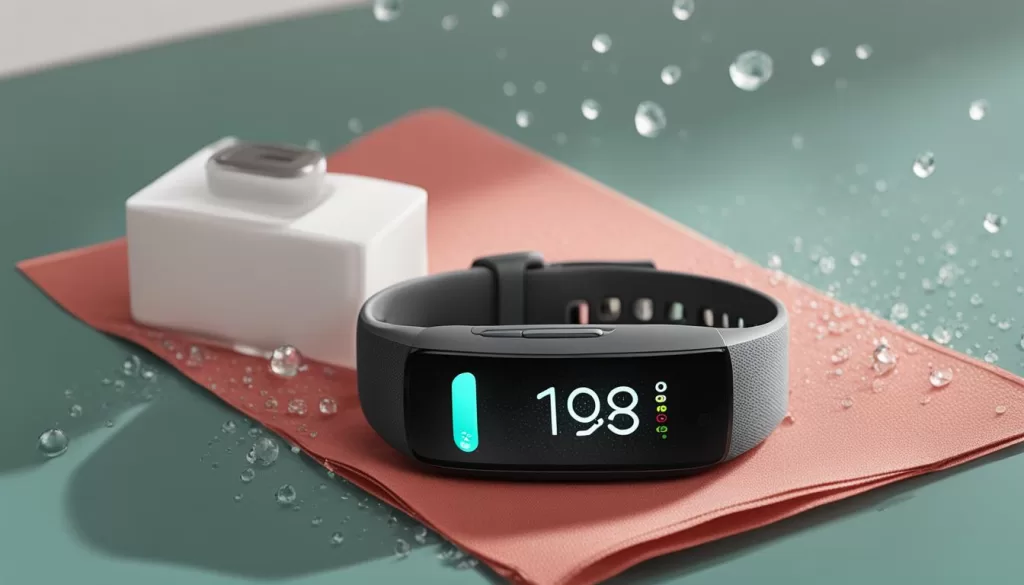
Having a wet device can significantly impact its charging capabilities. Moisture in the charging port can interfere with the electrical connection, preventing proper charging. To avoid this, gently wipe the device with a soft cloth to remove any water or moisture. Pay close attention to the charging port, ensuring that it is completely dry. Taking these precautions will help optimize the charging performance of your Fitbit Sense.
Leave the Device Plugged In
In some cases, when your Fitbit Sense’s battery is completely depleted, it may not immediately show signs of charging. If you’re facing the issue of Fitbit Sense not charging, it is recommended to leave the device plugged in to the charging cable for at least 30 minutes. This extended period allows the battery to build up enough power to turn the device back on.
During this time, it’s important to be patient and avoid frequently checking the device for any immediate charging progress. After waiting for at least 30 minutes, check the device’s screen to see if the charging icon appears. If it does, this indicates that the device has gained enough power to start charging normally.
Leaving your Fitbit Sense plugged in for this duration can help ensure that it receives an adequate initial charge, especially after the battery has been completely depleted.
Important Note:
Keep in mind that if you still encounter issues with charging beyond the 30-minute mark, despite following the recommended steps, it may be necessary to explore other troubleshooting options or contact Fitbit customer support for further assistance.
Contact Customer Support
If none of the previous solutions resolve the charging problem with your Fitbit Sense, it’s time to reach out to Fitbit’s customer support. They have a team of experts who can provide further guidance and troubleshooting steps to help you get your device charging again.
You can contact Fitbit customer support directly through their website or by reaching out to their support team. They will assist you in resolving any persistent charging issues you’re facing with your Fitbit Sense.
Remember, technical support is there to help you, so don’t hesitate to seek their assistance when needed. They have the knowledge and resources to address your Fitbit Sense not charging, charging problems, battery issues, and issues with the device not holding a charge.