
How to Fix Fitbit Charge 4 Screen Unresponsive Issue
Have you ever experienced the frustration of an unresponsive screen on your Fitbit Charge 4? It can be incredibly annoying when you’re trying to track your daily activities and maintain a healthy lifestyle, but your device isn’t cooperating. So why does this happen? And more importantly, how can you fix it?
In this guide, we will delve into the common reasons why the Fitbit screen may not be working and provide you with effective solutions to resolve the issue. Whether it’s a frozen screen, water droplets on the display, or a system abnormality, we’ve got you covered. Say goodbye to the frustration and get back to enjoying the full functionality of your Fitbit Charge 4.
Key Takeaways:
- There are several reasons why the screen of your Fitbit Charge 4 may become unresponsive.
- The most common causes include fingers being covered, water droplets on the screen, device freezing, physical damage, or a system abnormality.
- You can try various troubleshooting methods to fix the issue, such as restarting the device, updating the software, or performing a factory reset.
- If all else fails, reaching out to Fitbit Customer Support can provide further assistance.
- Keep in mind that Fitbit devices can experience other common problems, such as syncing issues or button malfunctions. Troubleshooting steps for these problems will also be discussed.
Common Reasons for Fitbit Screen Not Working
The screen of a Fitbit device can encounter various issues, including touch failure, a black screen, abnormal vertical lines, and more. Understanding the common reasons behind these problems is crucial in troubleshooting and resolving the Fitbit Charge 4 screen unresponsive issue.
One of the primary causes for a non-working Fitbit screen is when your fingers are covered. Dirt, moisture, or sweat on your fingertips can hinder touch sensitivity, resulting in an unresponsive touch screen. Make sure to keep your hands clean and dry before interacting with your Fitbit device.
Water droplets on the screen can also lead to unresponsiveness. If your Fitbit device has come into contact with water or if there are water droplets present on the screen, gently wipe it clean using a soft cloth to restore touch functionality.
Another potential reason for the screen not working is if the device is frozen. A frozen Fitbit screen can be resolved by restarting your device. Press and hold the side button on your Fitbit Charge 4 for approximately 10-15 seconds until the Fitbit logo appears on the screen, indicating that it has restarted.
Physical damage to the screen can also cause unresponsiveness. Check for any visible cracks, scratches, or signs of impact on the screen. If physical damage is evident, it may be necessary to contact Fitbit Customer Support or visit an authorized service center for assistance.
Lastly, a system abnormality can also result in an unresponsive Fitbit screen. To address this issue, try updating your Fitbit device to the latest firmware version. Updating the software can help resolve any software-related bugs or glitches that may be affecting the screen’s responsiveness.
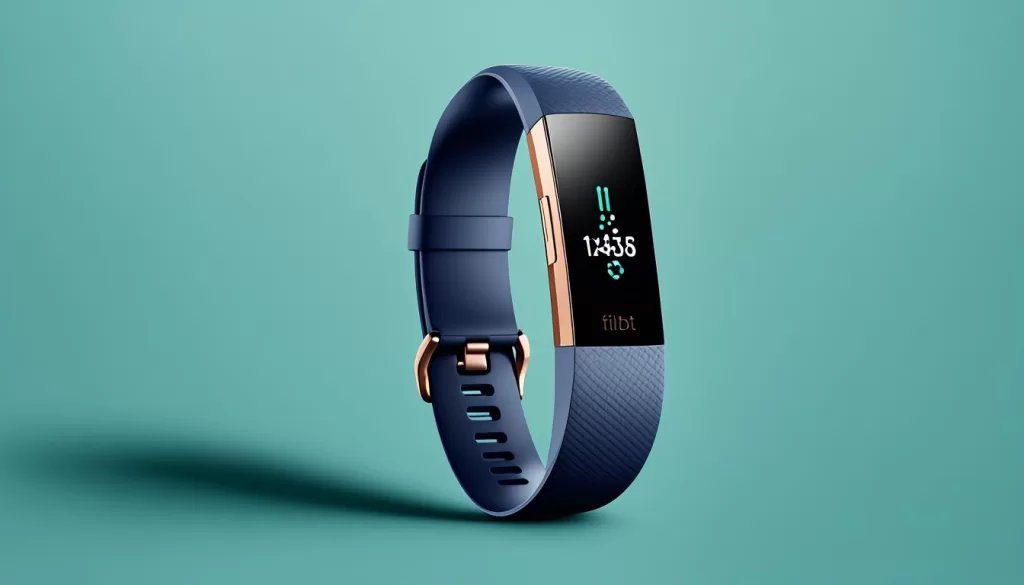
How to Fix Fitbit Screen Not Working
If you’re experiencing an unresponsive screen on your Fitbit Charge 4, there are several methods you can try to resolve the issue. By following these troubleshooting steps, you can get your Fitbit device back to its normal functioning.
First, try restarting your Fitbit Charge 4. This simple step can often clear any temporary errors or processes that may have caused the screen to freeze. To do this, press and hold the button on the side of your device for a few seconds until you see the Fitbit logo appear on the screen.
If restarting doesn’t solve the problem, check if there is an available software update for your Fitbit. Outdated software can sometimes result in an unresponsive touchscreen. To update your Fitbit, open the Fitbit app on your smartphone, go to the device settings, and check for any available updates.
Another potential solution is to close all the apps running on your Fitbit watch. Sometimes, certain apps or processes can interfere with the screen’s responsiveness. To close apps, swipe right on your device’s screen until you see the app you want to close, then swipe up on the app to close it.
If none of these methods work, you can try performing a factory reset on your Fitbit Charge 4. Keep in mind that performing a factory reset will erase all data and settings on your device, so make sure to back up any important data beforehand. To perform a factory reset, open the Fitbit app on your smartphone, go to the device settings, and select “Reset Fitbit Charge 4.”
If you’ve tried all of these troubleshooting steps and your Fitbit screen is still unresponsive, it may be time to reach out to Fitbit Customer Support. They can provide further assistance and guide you through additional troubleshooting steps to resolve the issue.
Troubleshooting Other Fitbit Problems
While a non-responsive screen is a common issue with Fitbit devices, there are other problems that you may encounter. These include syncing issues, notification issues, button issues, and charging issues. To resolve these problems, you can try a few troubleshooting steps:
Syncing Issues
If you’re experiencing problems with syncing your Fitbit device, ensure that it is within the Bluetooth range of your mobile device or computer. Additionally, make sure that Bluetooth is turned on and that your device is paired correctly. Restarting both your Fitbit and the device you’re syncing to can often resolve syncing issues.
Notification Issues
If you’re not receiving notifications on your Fitbit, ensure that you have enabled notifications for the specific apps you want to receive notifications from. You can do this through the Fitbit app on your mobile device. Additionally, ensure that your Fitbit is connected to your mobile device via Bluetooth and that both devices have a stable internet connection.
Button Issues
If the buttons on your Fitbit device are not responding, try cleaning the buttons and the surrounding area with a soft cloth. Sometimes, dirt or debris can affect their functionality. If the issue persists, consider contacting Fitbit Customer Support for further assistance.
Charging Issues
If you’re having trouble charging your Fitbit, ensure that the charging cable is properly connected to both the device and the power source. Try using a different USB port or wall adapter to rule out any issues with the power source. If the problem continues, try cleaning the charging port on your Fitbit device with a soft, dry cloth. If none of these steps resolve the issue, reach out to Fitbit Customer Support for further guidance.
By troubleshooting these common Fitbit problems, you can ensure that your device functions smoothly and you can make the most out of your fitness tracking experience.
Bonus Tips – Fixing iOS Devices Not Working
If you’re facing issues with your Fitbit Charge 4 screen, it’s possible that you might also encounter similar problems with other iOS devices like your iPhone or iPad. In such cases, don’t worry! There’s a recommended solution to help resolve these issues. One useful tool worth considering is iMyFone Fixppo, an iOS system repair software.
iMyFone Fixppo is designed to fix various iOS-related problems, including white screens, frozen screens, and update failures. By simply following the step-by-step instructions provided by the software, you can easily repair these issues and ensure the smooth functioning of your iOS device.
Whether you’re dealing with a Fitbit Charge 4 screen issue or other iOS device problems, iMyFone Fixppo is a reliable solution to consider. It provides an efficient and user-friendly way to troubleshoot and fix common issues, allowing you to enjoy uninterrupted use of your devices. Don’t let screen problems hinder your fitness tracking or device usage experience; let iMyFone Fixppo assist you in resolving these issues quickly and effectively.