
How to Fix Apple Watch Series 7 Software Won’t Update Issue
Are you struggling to update the software on your Apple Watch Series 7? It can be frustrating when your device won’t update, leaving you unable to access new features and bug fixes. But fear not, we’re here to help you troubleshoot the issue and get your Apple Watch up to date.
In this article, we’ll guide you through the steps to fix common update problems on your Apple Watch Series 7. Whether your software update is stuck, failed, or not happening at all, we have the solutions you need to get your Apple Watch back on track.
Key Takeaways:
- Check your Apple Watch’s compatibility and ensure your iPhone is updated.
- Update your Apple Watch automatically or manually using the Apple Watch app or Settings app on your iPhone.
- If you have an older Apple Watch model, it may not support the latest software updates.
- Troubleshoot common update issues by checking your internet connection, restarting your devices, and deleting failed update files.
- Be patient during the update process and keep your Apple Watch charged and connected to Wi-Fi.
Checking Compatibility and Basic Requirements
To ensure a smooth and successful update for your Apple Watch, it’s essential to check its compatibility and meet the basic requirements. Here are some important factors to consider:
Apple Watch Compatibility
Firstly, make sure that your Apple Watch is compatible with the latest software version, watchOS 10. Some older models may not support the update, so it’s important to check your Apple Watch’s model and series.
Required iPhone and iOS Versions
In addition to Apple Watch compatibility, ensure that your iPhone is updated to the latest iOS version. To enjoy the new features and improvements brought by the watchOS 10 update, your iPhone needs to meet the minimum software requirements.
iPhone Connection to Wi-Fi
During the update process, it’s crucial to have a stable Wi-Fi connection. Connect your iPhone to a reliable Wi-Fi network to ensure a fast and uninterrupted download of the update files.
Apple Watch Minimum Battery Level
Before initiating the update, charge your Apple Watch to at least 50% to avoid any unexpected interruptions during the installation process. This ensures that your Apple Watch has sufficient power to complete the update successfully.
Updating Overnight or When You Have Time
The Apple Watch update can sometimes take a while to download and install. To avoid any inconvenience, consider updating your Apple Watch overnight or when you have ample time available. This allows the update process to run without interruptions or time constraints.
By following these compatibility and basic requirement checks, you’ll be well-prepared to update your Apple Watch to the latest watchOS 10 software version. Let’s move on to the next section to explore how to update your Apple Watch automatically.
Updating Apple Watch Automatically
When it comes to updating your Apple Watch, there’s a convenient option that allows you to update automatically through a notification. This ensures that you stay up to date with the latest software without any hassle.
Firstly, you need to wait for your Apple Watch to notify you when a new update is available. Once you receive the notification, simply tap on it to open the update options.
One of the update options available to you is the “Update Tonight” option. This option allows you to schedule the software update to take place overnight, while you sleep peacefully. By selecting “Update Tonight,” you can ensure that your Apple Watch updates itself while you rest.
For a successful update, it’s important to leave your Apple Watch and iPhone charging overnight. This ensures that both devices have enough battery power to complete the update process without any interruptions. By leaving them charging overnight, you can wake up to an updated Apple Watch ready for you to enjoy.
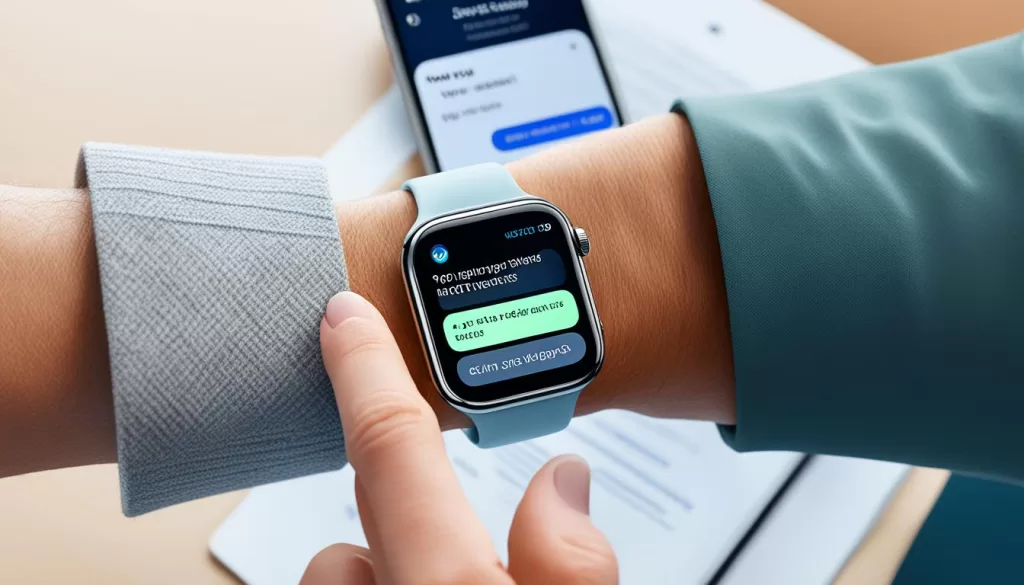
Take Advantage of Automatic Updates
Updating your Apple Watch automatically through the “Update Tonight” option is a convenient and effortless way to ensure your device stays up to date. By simply tapping on the update notification and leaving your devices charging overnight, you can enjoy the benefits of the latest software without any manual intervention. Stay connected and enjoy all the new features and improvements that come with each software update.
Updating Apple Watch Manually
If your Apple Watch won’t update automatically or you prefer to have more control over the update process, you can manually update your Apple Watch through the Apple Watch app on your iPhone.
To update your Apple Watch manually, follow these steps:
Step 1: Open the Apple Watch App
Open the Apple Watch app on your iPhone and navigate to the My Watch tab.
Step 2: Access Software Update
In the My Watch tab, scroll down and tap on General. Then, select Software Update.
Step 3: Download and Install the Update
Tap on Download and Install. If prompted, enter your passcode.
Step 4: Leave Apple Watch on the Charger
Wait for the progress wheel to appear on your Apple Watch and leave it on the charger until the update is complete.
It’s important not to restart your devices or quit the Apple Watch app during the update process to ensure a successful update.
By following these steps, you can update your Apple Watch manually and stay up-to-date with the latest software improvements and features.
Updating Apple Watch without iPhone (watchOS 6 or later)
If you’re using an Apple Watch with watchOS 6 or later, you can update it without needing your iPhone. This is a convenient option if your iPhone is not available or if you prefer to update your Apple Watch directly.
To update your Apple Watch without your iPhone, follow these steps:
1. Connect to Wi-Fi
Make sure your Apple Watch is connected to Wi-Fi. This ensures a stable internet connection for the update process. You can connect your Apple Watch to Wi-Fi by swiping up on the watch face to access the Control Center, then tapping the Wi-Fi icon.
2. Access Software Update
Next, open the Settings app on your Apple Watch. To do this, press the digital crown on your Apple Watch to access the app launcher, then look for the Settings app icon and tap on it.
Within the Settings app, scroll down and select “General.” From there, choose “Software Update.” This will direct you to the software update page where you can check for and install available updates.
3. Install Available Updates
If a software update is available for your Apple Watch, you will see the option to install it. Tap on “Install” and follow the onscreen instructions to initiate the update process. It may take some time for the update to download and install, so be patient and keep your Apple Watch connected to its charger throughout the process.
4. Keep Apple Watch Charging
While the update is in progress, it’s important to keep your Apple Watch on its charger. This ensures a stable power source and prevents any interruption during the update installation. Avoid restarting your Apple Watch or removing it from the charger until the update is complete.
Updating your Apple Watch without needing your iPhone provides flexibility and convenience. As long as your Apple Watch is running watchOS 6 or later, you can easily connect to Wi-Fi, access the Software Update section in General settings, and install available updates directly on your watch. Remember to keep your Apple Watch charging throughout the update process and avoid restarting it until the update is complete.
Troubleshooting Apple Watch Update Issues
If you’re having trouble with your Apple Watch not updating or if the update seems to be stuck, there are several troubleshooting steps you can try to resolve the issue. Follow these tips to ensure a smooth update process:
Check Your Internet Connection
Before starting the update, make sure you have a stable internet connection. Connect your Apple Watch to a reliable Wi-Fi network to ensure a fast and uninterrupted update process.
Turn Off Bluetooth
In some cases, a problematic Bluetooth connection can interfere with the update process. Turn off Bluetooth on both your iPhone and Apple Watch, then attempt the update again.
Be Patient with Slow Updates
Updates can sometimes take longer than expected, especially if the servers are busy or your internet connection is slow. Be patient and allow the update to complete without interrupting the process.
Charge Your Apple Watch
Ensure that your Apple Watch has enough battery charge to complete the update. Connect it to the charger and make sure it remains charged throughout the update process.
Verify Your Wi-Fi Network
Double-check that your Apple Watch is connected to the correct Wi-Fi network. An incorrect network connection can cause update issues. Go to the Settings app on your Apple Watch to verify the Wi-Fi settings.
Restart Your Apple Watch and iPhone
If the update is still not progressing, try restarting both your Apple Watch and iPhone. This action can resolve temporary software glitches that may be affecting the update process.
Check Storage Space
Ensure that you have enough available storage space on your Apple Watch to accommodate the update. Go to the Settings app on your Apple Watch to check the storage status and delete any unnecessary files if needed.
Delete Failed Update Files
If a previous update attempt failed, it may be necessary to delete the failed update file before starting a new update. Clearing out failed update files can help resolve update issues.
Unpair and Resync Apple Watch
If all else fails, you can try unpairing your Apple Watch from your iPhone and then resyncing them. This process can help fix any underlying software issues that may be hindering the update.
By following these troubleshooting steps, you should be able to resolve common Apple Watch update issues and ensure a successful update process.
Apple Watch Update Not Supported for Older Models
Apple Watch owners using older models should be aware that the latest watchOS updates may not be supported. In order to upgrade to watchOS 8, your Apple Watch must be at least a Series 3 or newer model. It’s important to check the age of your Apple Watch before attempting an update to avoid compatibility issues.
Older Apple Watch versions may have limitations that prevent them from running the latest operating system. While these devices may still function with previous software versions, they may be unable to support the new features and enhancements introduced in watchOS 8.
If you’re unsure about the compatibility of your Apple Watch, you can check the model and series information by opening the Apple Watch app on your iPhone. Simply navigate to the My Watch tab, tap General, and then select About. Here, you’ll find the necessary details to determine if your Apple Watch meets the minimum requirements for the latest watchOS update.
Keeping your Apple Watch up to date ensures that you can take advantage of new features, bug fixes, and security improvements. However, if your Apple Watch is not compatible with watchOS 8, you can still enjoy previous versions of the software, although you may miss out on some of the newest functionalities offered with the latest update.