
How to Fix Apple Watch Series 7 Heart Rate Monitoring Not Accurate Issue
Do you rely on your Apple Watch Series 7 to track your heart rate during workouts? Have you noticed discrepancies in your heart rate readings? If so, you’re not alone. Many Apple Watch users have experienced heart rate tracking issues that can impact the accuracy of their data and compromise their fitness goals.
But fear not! In this article, we’ll delve into the common reasons why your Apple Watch Series 7 heart rate monitoring may not be accurate and provide you with troubleshooting steps to fix the problem. Whether you’re dealing with heart rate inaccuracies, troubleshooting heart rate on your Apple Watch Series 7, or encountering a heart rate monitor that’s not working, we’ve got you covered.
Read on to discover how you can regain confidence in the accuracy of your heart rate readings and stay on track with your fitness journey.
Key Takeaways:
- Improper placement on the wrist and incorrect watch band fit can lead to inaccurate heart rate readings on your Apple Watch Series 7.
- Cleaning the heart rate sensors regularly can help remove sweat and debris, improving the accuracy of heart rate monitoring.
- Updating your Apple Watch’s software and restarting the device can resolve software glitches and enhance heart rate tracking.
- If all else fails, performing a reset can help solve persistent heart rate monitoring issues, but remember to back up your data beforehand.
Check Your Wrist Placement and Watch Band Fit
Proper positioning of your Apple Watch Series 7 on your wrist is crucial for accurate heart rate monitoring. To ensure optimal heart rate tracking, follow these guidelines:
Wrist Placement
During workouts, position your Apple Watch just above the wrist bone to minimize movement and maintain consistent contact with your skin. This placement allows the heart rate sensor to accurately capture your heart rate data.
Watch Band Fit
While wearing your Apple Watch, it’s important to have a watch band that fits snugly but comfortably. A loose band can result in unreliable heart rate readings, while a tight band can restrict blood flow. Adjust the fit of your watch band to ensure a secure yet comfortable fit.
By checking your wrist placement and watch band fit, you can ensure consistent contact between the heart rate sensors and your skin, allowing for accurate heart rate monitoring throughout your activities.
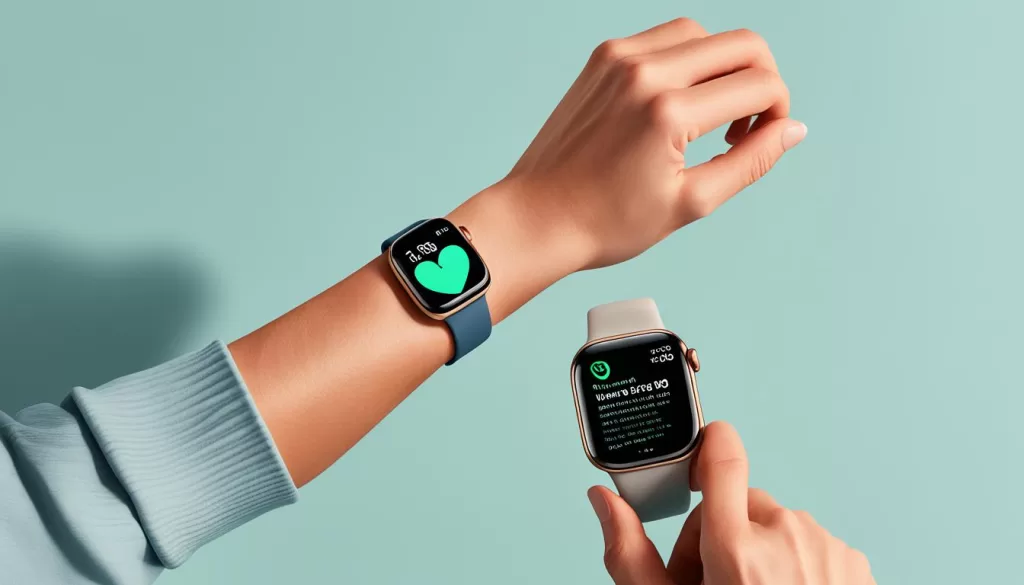
Remember, finding the right balance between a snug but comfortable fit on your wrist is key to optimal heart rate tracking on your Apple Watch Series 7.
Clean Your Apple Watch’s Sensor
Daily usage of your Apple Watch Series 7 can lead to sweat and debris buildup on the heart rate sensors, affecting their accuracy. It is important to clean the sensors regularly to ensure there is no obstruction between your skin and the watch.
To clean the sensors, remove the watch from your wrist and gently wipe the sensors with a non-abrasive, lint-free cloth slightly dampened with fresh water. Ensure that the cloth is non-abrasive to avoid scratching the sensor surface. Take care to clean all areas of the sensor, including the edges.
After wiping the sensors, allow the watch to air dry completely before putting it back on. This will help prevent any moisture from affecting the accuracy of the heart rate readings.
By incorporating this simple cleaning routine into your regular Apple Watch maintenance, you can improve the accuracy and reliability of your heart rate monitoring.
Update Your Apple Watch’s Software and Restart the Device
Keeping your Apple Watch Series 7 software up to date is crucial for optimal performance and bug fixes. Regular software updates not only improve the overall functionality of your watch but can also enhance heart rate tracking accuracy. To update the software, follow these steps:
1. Ensure your Apple Watch is charged or connected to a power source.
2. On your paired iPhone, open the Watch app.
3. Tap on the “My Watch” tab at the bottom of the screen.
4. Scroll down and tap on “General”.
5. Select “Software Update”.
6. If an update is available, tap on “Download and Install”.
7. Follow the on-screen prompts and agree to the terms and conditions.
8. Once the update is downloaded, it will automatically install on your Apple Watch.
9. Ensure that your Apple Watch remains connected to your iPhone throughout the update process.
In addition to software updates, restarting your Apple Watch can help resolve any minor software glitches that may affect heart rate monitoring. Follow these steps to restart your Apple Watch:
1. Press and hold the side button until the Power Off screen appears.
2. Swipe the Power Off icon from left to right.
3. Wait for your Apple Watch to shut down completely.
4. Press and hold the side button again until the Apple logo appears.
5. Release the side button and wait for your Apple Watch to restart.
By updating your Apple Watch’s software and restarting the device, you can resolve software glitches, improve heart rate tracking accuracy, and ensure the overall smooth operation of your Apple Watch Series 7.
Reset Your Apple Watch
If the previous troubleshooting steps did not resolve the heart rate monitoring issue on your Apple Watch Series 7, performing a reset may help. Resetting your watch will wipe all data and restore it to its default settings, potentially resolving any persistent software-related problems affecting heart rate tracking.
To reset your Apple Watch, follow these steps:
- Open the Settings app on your watch.
- Navigate to General.
- Scroll down to Reset.
- Select Erase All Contents and Settings.
- Confirm your action, and the watch will reset.
Keep in mind that resetting your Apple Watch should be a last resort, as it will erase all data on the device. Make sure to back up your data before proceeding with the reset to avoid permanent loss.