
How to Fix Apple Watch Series 4 Heart Rate Monitoring Not Accurate Issue
Is your Apple Watch Series 4 heart rate monitoring not giving you accurate readings? Are you wondering why this might be happening? Don’t worry, we’ve got you covered. In this article, we will explore the possible causes behind the accuracy issues in your Apple Watch’s heart rate monitoring and provide you with practical solutions to fix the problem.
Whether you’re relying on your Apple Watch for fitness tracking or monitoring your heart rate for health reasons, it’s essential to ensure the accuracy of the readings. Let’s dive into the possible reasons and solutions for the heart rate monitoring not being accurate on your Apple Watch Series 4.
Key Takeaways:
- Improper placement, a loose or tight band, and sweat accumulation can affect the accuracy of heart rate monitoring on Apple Watch Series 4.
- Adjusting the placement on your wrist, ensuring a proper band fit, and regularly cleaning the sensors can improve accuracy.
- Updating the watch software, restarting the watch, or resetting it to default settings may also help resolve accuracy issues.
Check Your Wrist Placement
The heart rate sensor on your Apple Watch Series 4 works best when positioned correctly on your wrist. During high-intensity activities, make sure the watch sits just above the wrist bone to reduce movement and ensure consistent contact with your skin. This will help improve the accuracy of the heart rate readings.
Proper Wrist Placement for Accurate Heart Rate Monitoring
When wearing your Apple Watch Series 4, it is essential to position it correctly on your wrist to optimize the heart rate monitoring feature. Placing the watch just above the wrist bone minimizes excess movement and maintains steady contact between the heart rate sensors and your skin. This ensures more accurate and reliable heart rate measurements.
During intense physical activities, such as running or HIIT workouts, the watch may shift due to the repetitive motion. To prevent this, tighten the watch band securely around your wrist, keeping the watch snugly in place. By maintaining proper wrist placement, you enhance the watch’s ability to capture and track your heart rate effectively.
Check Watch Band Fit
The fit of your watch band is crucial for accurate heart rate monitoring on your Apple Watch Series 4. It’s essential to ensure that your watch band fits snugly but comfortably on your wrist, allowing the heart rate sensors to maintain consistent contact with your skin.
A band that is too loose may cause the watch to move around, resulting in inaccurate readings. On the other hand, a band that is too tight can restrict blood flow and interfere with the sensors’ ability to accurately track your heart rate.
To improve the accuracy of your heart rate monitoring, take the time to adjust your watch band properly. The band should feel secure without being overly tight, allowing for unrestricted movement while maintaining steady contact with your skin.
If you’re unsure about the ideal fit, refer to the manufacturer’s guidelines or consult the Apple Watch Series 4 user manual for specific instructions on adjusting the band.
By ensuring a proper watch band fit, you’ll enjoy more reliable heart rate monitoring on your Apple Watch Series 4, allowing you to track your fitness progress with confidence.
Tip:
Remember to check the fit of your watch band periodically, as it may loosen over time with regular use. Keeping an eye on the fit will help maintain accurate heart rate monitoring.
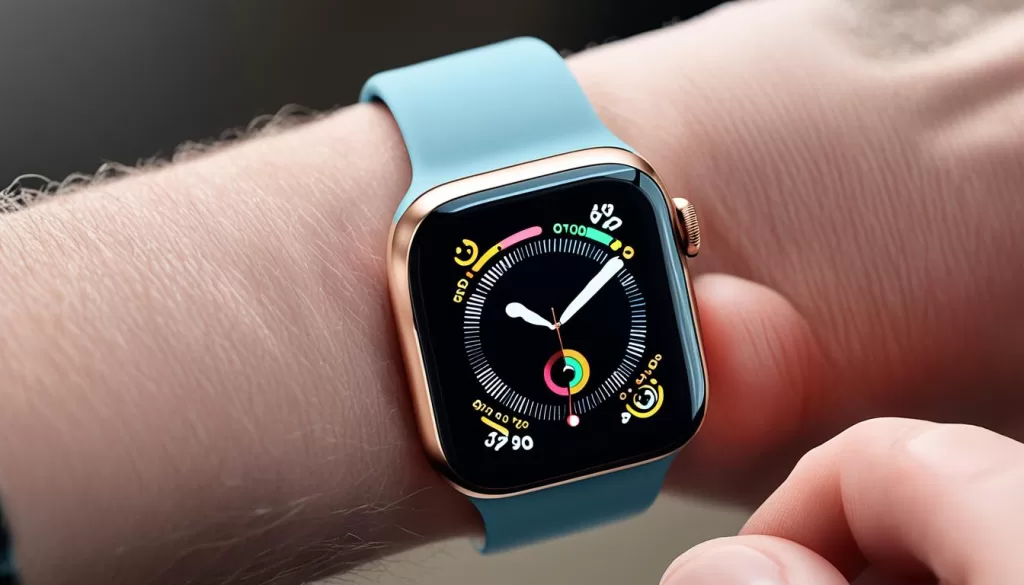
Clean Your Apple Watch’s Sensor
Sweat and debris can accumulate on the heart rate sensors of your Apple Watch Series 4, hindering their optimal function. It is important to regularly clean the sensors to ensure more accurate heart rate readings.
To clean the sensors, follow these simple steps:
Step 1: Remove the Watch from Your Wrist
Take off your Apple Watch Series 4 to access the heart rate sensors.
Step 2: Gently Wipe the Sensors
Take a non-abrasive, lint-free cloth and dampen it with fresh water. Gently wipe the sensors on the back of the watch, ensuring you remove any sweat or debris that may have accumulated.
Step 3: Check for Obstructions
After cleaning, make sure there are no obstructions on the sensors that could interfere with the heart rate monitoring. Verify that the sensors are clean and free from any residue or particles.
By regularly cleaning the heart rate sensors of your Apple Watch Series 4, you can maintain their optimal functionality, leading to more accurate heart rate monitoring results.
Update Your Apple Watch Software
Apple frequently releases software updates for the Apple Watch Series 4, aimed at addressing various bugs and improving performance, including heart rate monitoring. Ensuring that your watch is updated to the latest watchOS version can potentially resolve any accuracy issues you may be experiencing with heart rate monitoring.
To update your Apple Watch software, you can do so through either the Watch app on your iPhone or directly on the watch itself. If using your iPhone, open the Watch app and navigate to the My Watch tab. From there, select General, then Software Update. If an update is available, make sure your iPhone is connected to Wi-Fi and your Apple Watch is charged to at least 50%. Tap Download and Install to begin the update process.
If you prefer to update your Apple Watch software directly on the watch, ensure that it’s connected to Wi-Fi and charged to at least 50%. Open the Settings app on your watch, scroll down to General, select Software Update, and follow the on-screen instructions to download and install the update.
It’s important to keep your Apple Watch Series 4 software up to date to ensure optimal performance, including accurate heart rate monitoring. Checking for and installing software updates regularly can help enhance your overall experience and address any potential issues.
Restart Your Apple Watch
If your Apple Watch Series 4 is still not accurately tracking your heart rate, a simple restart may fix the issue. Follow the steps below to restart your watch:
- Press and hold the side button on your Apple Watch.
- In the options that appear on the display, tap the Power Off icon located on the top-right corner.
- Drag the Power Off slider to the right side.
- Wait for a few seconds, then press and hold the side button again.
- Continue holding the side button until the Apple logo appears on the screen.
A restart helps resolve any temporary glitches affecting the heart rate monitoring feature of your Apple Watch Series 4. Once the watch restarts, check if the heart rate tracking becomes more accurate.
Reset Your Apple Watch
If you’ve tried all the troubleshooting steps mentioned above and the heart rate monitoring on your Apple Watch Series 4 still isn’t accurate, it might be time to reset your device. This last resort option will erase all data and restore your watch to its factory settings, potentially resolving any software-related issues affecting heart rate monitoring.
To reset your Apple Watch Series 4, follow these simple steps:
- Open the Settings app on your watch.
- Tap on “General”.
- Scroll down to “Reset”.
- Select “Erase All Contents and Settings”.
- Confirm the action.
It’s important to note that resetting your Apple Watch Series 4 should be a last resort, as it will result in the loss of all data on the watch. If you have any important data or settings that you want to save, make sure to back them up before proceeding with the reset.
By following these steps, you can effectively reset your Apple Watch Series 4 and hopefully resolve any heart rate monitoring issues you may be experiencing. Remember to reconfigure your watch and personalize it with your preferred settings after the reset.