
How to Fix Apple Watch Series 3 Won’t Turn On Issue
Imagine wanting to check the time or track your workout progress on your Apple Watch Series 3, only to find that the screen remains stubbornly black. Frustrating, isn’t it? But before you start panicking or considering a replacement, there are several troubleshooting steps you can take to revive your beloved wearable device.
With our comprehensive guide, we’ll walk you through the most effective techniques to get your Apple Watch Series 3 up and running again. From checking your charging cable to performing a force restart, we have you covered. Don’t let a seemingly lifeless screen stop you from enjoying the convenience and functionality of your Apple Watch.
Key Takeaways:
- Check the charging cable and power source to ensure a secure connection.
- Perform a force restart by pressing and holding the side button and Digital Crown.
- Charge the battery for at least 30 minutes, or consider overnight charging for a full charge.
- Seek professional assistance if the above steps don’t resolve the issue, as it may indicate a hardware problem.
- Don’t panic or rush to conclusions – there’s a good chance you can bring your Apple Watch Series 3 back to life!
Check Charging Cable and Power Source
If your Apple Watch is not turning on, one common reason could be a charging issue. To address this, start by checking the charging cable and power source.
Make sure you are using the original Apple Magnetic Charging Cable or USB-C Magnetic Fast Charging Cable that came with your Apple Watch. It is important to use a certified cable to ensure compatibility and optimal charging performance.
Ensure that the cable is securely plugged in to both the USB Power Adapter and the power outlet. If you are using a third-party charging stand, make sure to use the cable that came with your Apple Watch.
Additionally, check the back of your Apple Watch and the magnetic charger for any dirt, debris, or damage. Sometimes, a dirty or damaged connection can prevent the watch from charging properly. Clean both the watch and the charger using a soft, lint-free cloth.
When placing your Apple Watch on the charger, make sure it is aligned properly with the magnetic charger. Reposition the watch if necessary to ensure a solid connection.
If you have followed these steps and your Apple Watch still won’t charge, you may need to try alternative troubleshooting methods. Continue reading the article for further solutions.
Perform a Force Restart
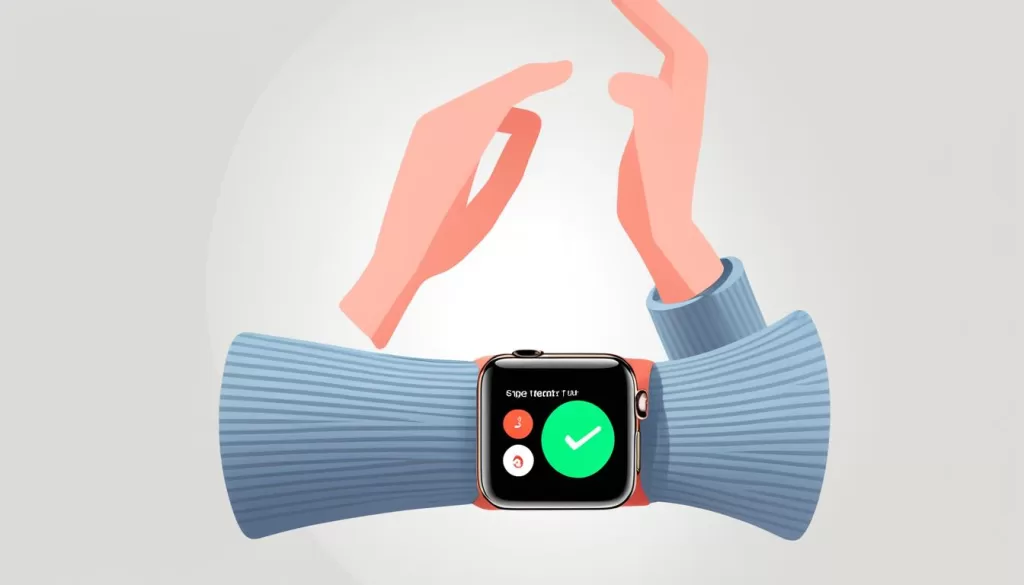
If your Apple Watch still won’t turn on after checking the charging cable, you can try performing a force restart. This can help resolve any software glitches or issues that may be preventing your Apple Watch from powering on.
To perform a force restart, follow these steps:
-
Press and hold both the side button and the Digital Crown simultaneously.
-
Continue holding the buttons for at least 10 seconds, or until you see the Apple logo on the screen.
Once you see the Apple logo, release the buttons. Your Apple Watch will then start the restart process. This force restart can help kick-start your Apple Watch and resolve any temporary issues that may be causing it not to turn on.
If the force restart doesn’t resolve the issue, proceed to the next troubleshooting steps.
Charge the Battery
If your Apple Watch is not turning on, it could be due to a dead battery. If you have been using your watch extensively, the battery may be completely depleted. Try charging your Apple Watch for at least 30 minutes using a certified charging cable and power source.
If you haven’t used or charged your watch for a while, consider charging it overnight to ensure a full charge. This will give your Apple Watch ample time to regain power and potentially resolve the issue.
If your Apple Watch displays a message saying that charging with the accessory is not supported, there may be a problem with the charging cable. Check the cable for any damage or frayed wires, and make sure the back of the watch and the charger are clean.
To help you visualize the process, here’s an image of an Apple Watch being charged:
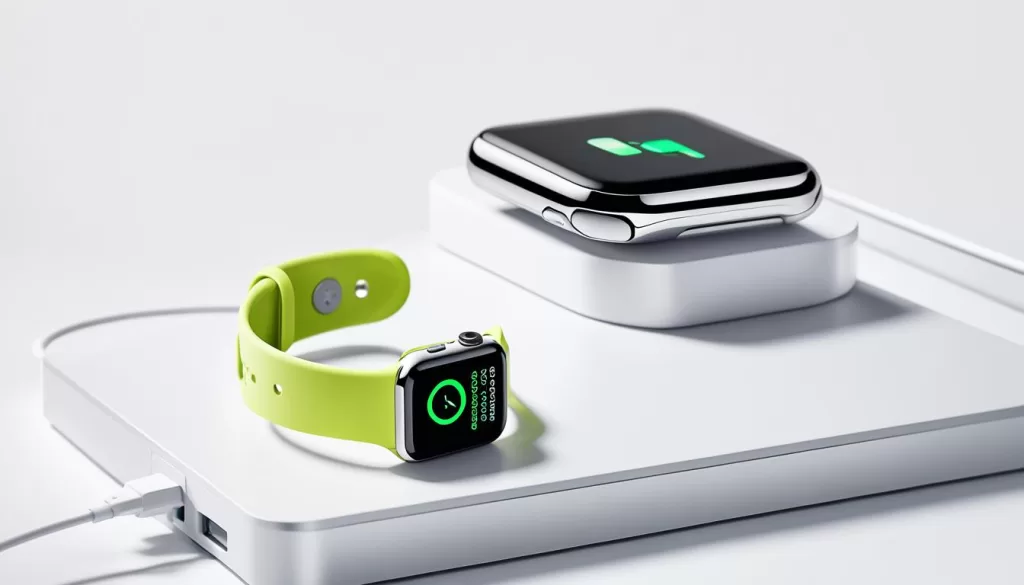
Remember, a fully charged Apple Watch should provide several hours of use. If your watch continues to have power-related issues, you may need to consult professional assistance to diagnose and address any underlying hardware problems.
Seek Professional Assistance
If your Apple Watch still won’t turn on after trying the previous steps, it may indicate a hardware issue. If you have dropped your watch or exposed it to water recently, these incidents could be responsible for the problem. In such cases, it is recommended to seek professional assistance.
Contact Apple Support or visit an Apple store to have your Apple Watch diagnosed and repaired by experts. Their team of technicians is trained to handle hardware issues and provide the necessary solutions. They have the knowledge and tools to identify the root cause of the problem and offer the most effective repair options.
Avoid using DIY solutions or unauthorized repair services, as they may cause further damage to your device. It is essential to trust the experts at Apple to ensure a proper diagnosis and repair for your Apple Watch.